AI tool · from 30 credits · Refunded if it fails

YouTube Thumbnail Generator

Type the words for the thumbnail and what the video is about, pick a style, and the AI designs a 16:9 thumbnail with big, readable text. Add a photo of your face to put yourself in it.

  • Output16:9 JPG
  • Text on itUp to 60 characters
  • StylesBold · Dramatic · Minimal · Neon · Vlog
  • Your faceOptional, needed for Pro

Set it up

Try an example
Quality
Estimated30 credits
Ways to pay less
  • Standard is 30 credits and Pro is 57. Standard also works with your face photo, so try it first and use Pro when you want the finest detail.
  • The price is flat per thumbnail, with or without a face photo and for any of the five styles.

Need something else? More Photo & Image tools or all 54 tools

What is a YouTube thumbnail generator?

A YouTube thumbnail generator is a tool that designs the preview image for your video from a title and a topic. Here you type up to 60 characters of thumbnail text and up to 300 characters about the video, pick one of five styles, and the AI returns a 16:9 JPG with the headline placed so it doesn't cover the face. Add a photo of yourself to appear in it. Standard costs 30 credits; Pro, which uses your face with finer detail, costs 57.

Example
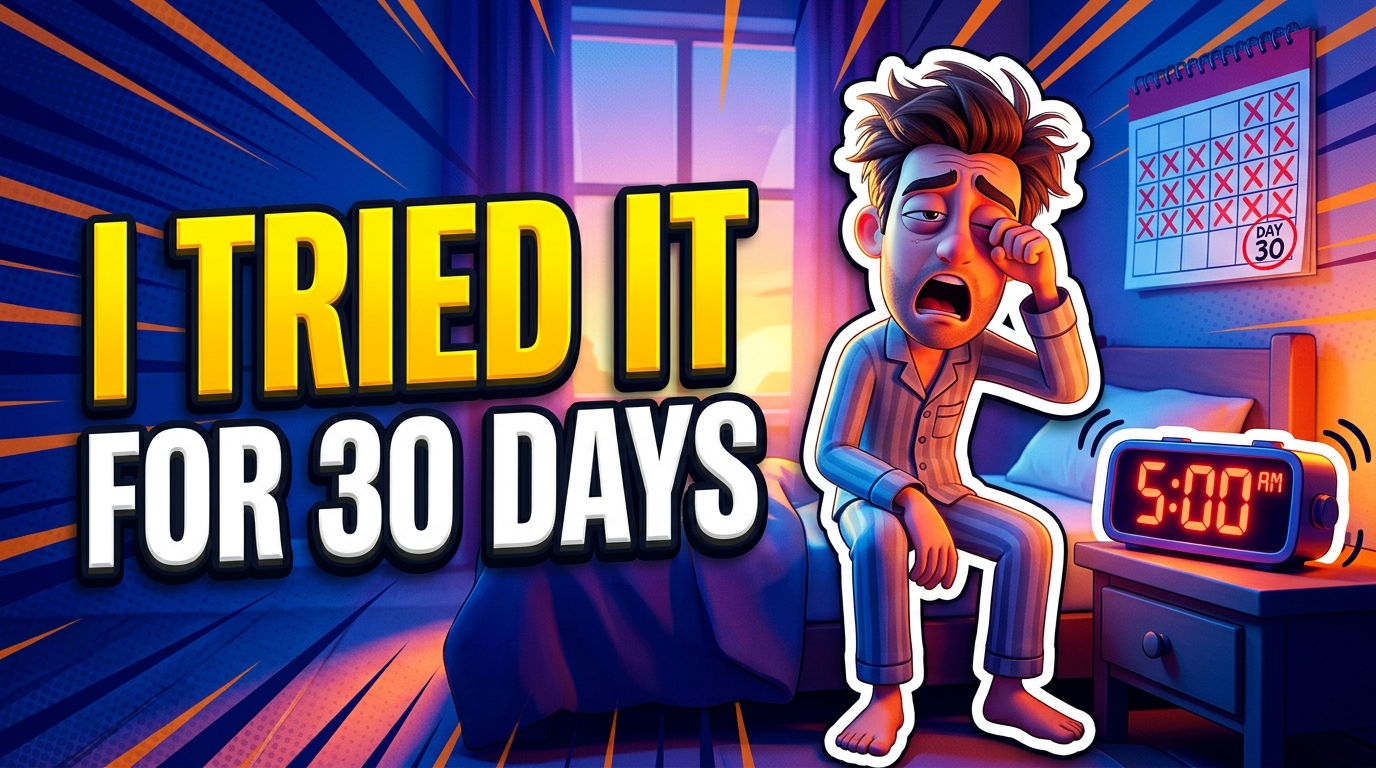
"I TRIED IT FOR 30 DAYS": a bold thumbnail from a title and a topic.Bold16:9
"I TRIED IT FOR 30 DAYS": a bold thumbnail from a title and a topic.

Start from an example

How to use YouTube Thumbnail Generator in 3 steps

  1. Type the title and topic

    Sign in, type the text for the thumbnail, such as "I TRIED IT FOR 30 DAYS", and a sentence about what the video is about.

  2. Add your face and a style

    Optionally upload a clear photo of yourself, then pick one of the five styles and Standard or Pro. Pro needs the face photo.

  3. Make the thumbnail

    Press Make the thumbnail. The YouTube thumbnail generator saves a 16:9 JPG in My Videos, ready to upload in YouTube Studio.

What YouTube Thumbnail Generator does

Headline text built in

The words you type, up to 60 characters, are drawn large and bold on the thumbnail, sized to stay readable at the small size thumbnails are shown at in a feed.

With or without your face

Upload a photo of yourself and the AI makes you the main subject with a strong, expressive reaction, keeping your face shape, skin tone and hairstyle. Without a photo, it creates a striking scene that tells the story, with no real people.

Five ready styles

Bold and bright with a thick outline around the subject, Dramatic with moody cinematic light, Clean and minimal with one focal point, Neon with pink and cyan glow, and Friendly vlog with natural colours.

Made from your topic

Describe the video in a sentence, like "a month of waking up at 5 am, honest results", and the AI picks a scene and props that match it.

Standard and Pro

Standard is the quick option and works with or without a face photo. Pro needs your face photo and renders finer detail in skin, light and text.

Comparison

Why use YouTube Thumbnail Generator instead of building it layer by layer in a design app?

A hand-made thumbnail means cutting out your face, finding a background, adding an outline and setting the text. Here you type the words and pick a style.

FeatureYouTube Thumbnail GeneratorBuilding it layer by layer in a design app
Starting pointA title, a sentence about the video and an optional photoA blank canvas, a cut-out and a background to find
Headline textDrawn by the AI, up to 60 charactersPick a font, size, stroke and shadow yourself
Your facePlaced as the main subject with a strong reactionCut out, position and colour-match by hand
Styles5 ready styles, from bold to minimalBuild the look from scratch each time
OutputA 16:9 JPG saved in My VideosSet the canvas size and export yourself
Price30 credits Standard, 57 credits ProA design app and your time on each thumbnail

What you can make with it

A face-and-reaction thumbnail for a challenge video

You filmed a 30-day early-rising challenge and need the classic thumbnail: your surprised face, a bold claim, bright colours.

  • Upload a sharp photo of your face looking at the camera; an expressive face helps, and the AI is asked to turn it into a strong reaction.
  • Type "I TRIED IT FOR 30 DAYS" as the text and "waking up at 5 am for a month, honest results" as the topic.
  • Pick Bold and bright, and Pro for the most detail in your face.
  • Compare it with a Dramatic version to see which grabs attention faster.

A thumbnail without a face for a faceless channel

Your channel explains history with narration and stock-style visuals. You never show your face and need thumbnails that still pull clicks.

  • Leave the photo empty and choose Standard.
  • Describe the scene in the topic: "a lost city in the jungle, overgrown stone temple at dawn".
  • Keep the text to two to four words, like "THE LOST CITY".
  • Use the same style on every video so the channel looks consistent in search results.

A clean thumbnail for a tutorial or review

A step-by-step tutorial needs a calm, clear thumbnail that says what the viewer will learn, not a shocked face.

  • Choose Clean and minimal for lots of empty space and one focal point.
  • Type the outcome as the text, like "FIX IT IN 5 MINUTES".
  • Describe the object in the topic, for example "a bike chain being fixed on a workbench".
  • Add your face photo and pick Friendly vlog if your audience knows you by sight.

Who it's for

YouTubers

Get a finished 16:9 thumbnail for each upload without building it layer by layer in a design app.

Faceless channels

Make scene-based thumbnails for narrated, explainer and story videos with no face needed.

Podcasters and streamers

Turn an episode or VOD title into a bold cover image for the video version.

Course creators and educators

Make clean, readable thumbnails that say what each lesson teaches.

Tips for the best result

  • Keep the thumbnail text short. Two to five words read best at small size; the field allows up to 60 characters.
  • Check the spelling in the result before you upload it. Short, common words come out most reliably.
  • Make the topic visual: say what should be in the picture, not just the video's subject.
  • For face thumbnails, use a sharp, well-lit photo looking at the camera. No sunglasses, no heavy filters.
  • Only upload photos of yourself, or of someone who has given you permission. No public figures or children.
  • Want a face cut-out over your own design instead? Use Background Remover on your photo and build the thumbnail yourself.

Frequently asked questions

How do I make a YouTube thumbnail with AI?

Type the thumbnail text and what the video is about, pick a style and press Make the thumbnail. Add a face photo if you want to be in it. The 16:9 JPG is saved in My Videos.

How much does an AI thumbnail cost?

30 credits for Standard and 57 credits for Pro, per thumbnail.

Can I put my own face on the thumbnail?

Yes. Upload a clear photo of yourself and the AI makes you the main subject. It's optional for Standard and required for Pro.

What size is the thumbnail?

It's 16:9, the shape YouTube uses for thumbnails, saved as a JPG.

Can it write text on the thumbnail?

Yes. Type up to 60 characters and they're drawn as a large, bold headline. Check the spelling before you upload.

Can I make a thumbnail without showing my face?

Yes. Leave the photo empty and the AI designs a scene from your topic, with no real people in it.

Which styles are there?

Five: Bold and bright, Dramatic, Clean and minimal, Neon and Friendly vlog.

Can I use someone else's photo?

Only with that person's permission. Don't upload photos of public figures or children.

Do I need an account?

Yes. Sign in with Google or email; each job costs credits from your balance, and the result is saved in My Videos.

What if a job fails?

If a job can't finish, the credits it used go back to your balance automatically.

More AI Video Tools

All 54 tools →

Ready to try YouTube Thumbnail Generator?

A click-worthy 16:9 thumbnail with your title, with or without your face. from 30 credits, and the result is saved in My Videos.

Make the thumbnail