
AI tool · 10 credits · Refunded if it fails

Remove People from Photos by Typing Who

Upload the photo and type who should go: the tourists behind you, the person walking through the frame, the stranger at the edge of a group shot. The AI removes them and rebuilds the background where they stood.

  • InputOne JPG, PNG or WEBP
  • You typeWho to remove, up to 200 characters
  • OutputA PNG
  • Price10 credits per photo

Set it up

Try an example
Estimated10 credits
Ways to pay less
  • One flat price: 10 credits per photo, whether you remove one person or a whole crowd.
  • If one run misses someone, a second run on the result is another 10 credits, so name everyone you want gone in the first run.

Need something else? More Photo & Image tools or all 54 tools

How do I remove people from a photo?

Remove People from Photo is a tool that erases unwanted people from a picture by text. Upload the photo, then type who should go, such as "the people in the background" or "the man in the red jacket on the right". The AI finds them, removes them and fills the area with background that matches the scene, so the path, wall or beach continues where they were. There is no brush or mask to draw, and the result is a PNG.

Before
After
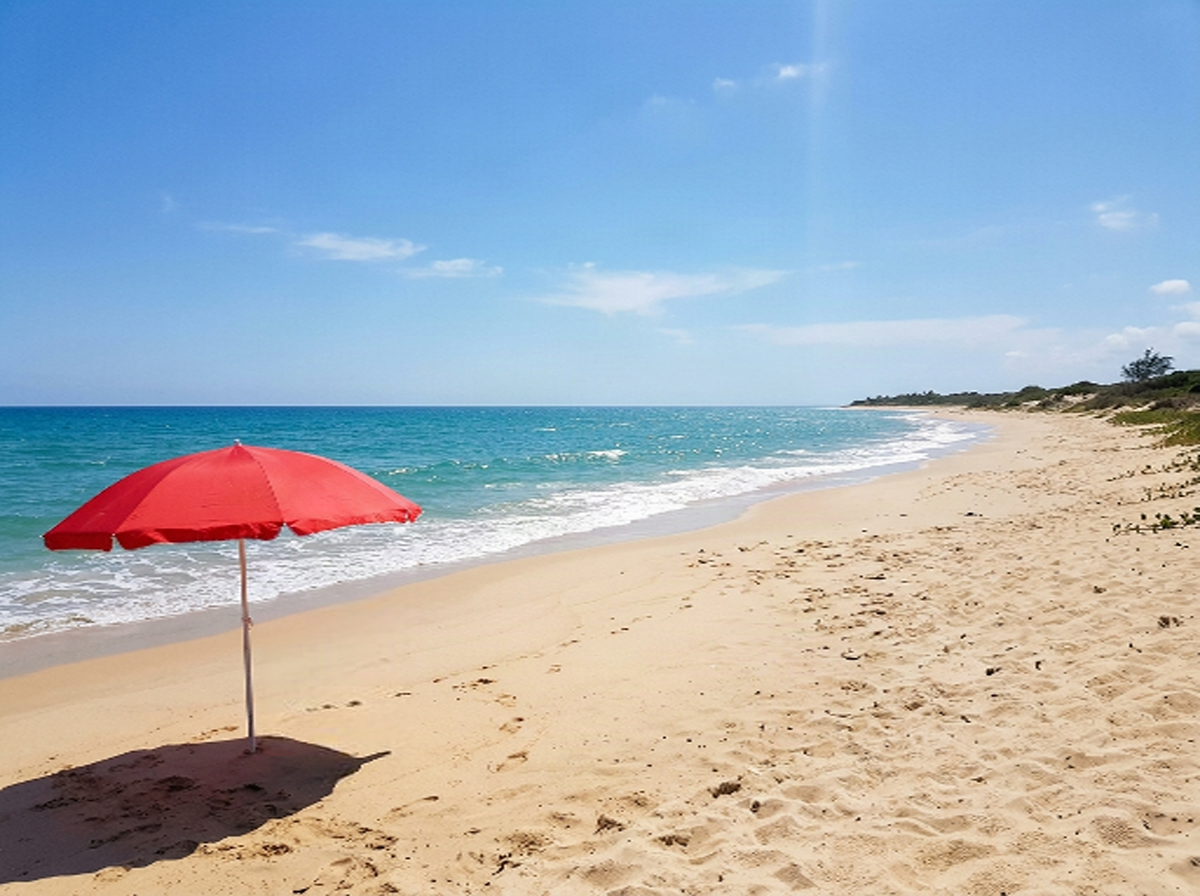
Typed "the white plastic chair" and it's gone, with the sand filled in.“the white plastic chair”
Typed "the white plastic chair" and it's gone, with the sand filled in.

Start from an example

How to use AI Object Remover in 3 steps

  1. Upload your photo

    Sign in and upload the picture you want to remove people from, as a JPG, PNG or WEBP up to 15 MB.

  2. Type who should go

    Keep "the people in the background" or describe a person by place and clothing, up to 200 characters.

  3. Remove the people

    Press Remove it. 10 credits; the cleaned PNG is saved in My Videos.

What AI Object Remover does

Describe who, not where to paint

Type it the way you'd tell a friend: "the two people sitting on the steps", "everyone behind the couple", "the cyclist on the left". No brushing over each person.

Crowds behind the subject

This page starts with "the people in the background" typed in, the most common job: a famous view with tourists behind you, a busy beach, a crowded market street.

One person among many

Add where they are and what they wear to pick one: "the woman in the yellow coat walking past on the left". The others stay in the photo.

The background is rebuilt

The removed area is filled to match its surroundings: cobblestones continue as cobblestones, sea continues as sea. It is not blurred or cloned from a single patch.

Lossless result

You get a PNG at the size the AI returns, ready to post or to pass on to another photo tool.

Comparison

Why use AI Object Remover instead of clone and healing brushes in a photo editor?

Removing an object by hand means painting over it and copying nearby texture until the patch disappears. Here you type what should go.

FeatureAI Object RemoverClone and healing brushes in a photo editor
Choosing the objectTyped in a few words, like "the person on the left"Brush or select it by hand, edge by edge
Filling the gapRebuilt by the AI to match the surroundingsClone texture from nearby, stroke by stroke
Repeated patternsWalls, grass and sky continue on their ownLine up the pattern yourself so no seam shows
Works on a phoneYes, upload from your gallery and typeFine brush work is hard without a mouse or pen
OutputA PNG saved in My VideosChoose the export format and settings yourself
PriceOne flat 10 credits per photoAn editor subscription and your time on each photo

What you can make with it

A landmark photo without the tourists

You at the viewpoint, without twenty strangers behind you.

  • Keep "the people in the background" and leave yourself in the foreground.
  • Works best when the people are smaller than you in the frame.
  • If a few remain, run the result again with "the remaining people on the left".
  • Very large crowds covering most of the view leave more for the AI to invent; check the result closely.

Removing a photobomber from a group shot

The person who walked in at the edge, or pulled a face behind the group.

  • Name their position and one clear detail: "the man in a grey hoodie behind the group on the right".
  • Say "behind" or "at the edge" so the AI doesn't touch the people you want to keep.
  • People overlapping the group are harder; the area where they touch may need a second pass.
  • Keep the original; the tool saves a new PNG and doesn't change your upload.

A clean street or venue photo

An empty-looking street, shop front or room for a website or a post.

  • Type "all the people walking on the street" or "the people sitting at the tables".
  • Use the largest version of the photo you have for the sharpest fill.
  • Remove people first, then cars or signs in a second run if needed.
  • Use photos you took or have permission to use.

Who it's for

Travellers

Clean up holiday photos taken at busy landmarks, beaches and viewpoints.

Families

Remove strangers from the background of birthday, wedding and day-out photos.

Small business owners

Get a clean photo of a shop front, café or venue without customers walking through.

Social media creators

Post outfit and travel shots where you're the only person in the frame.

Tips for the best result

  • Describe position and clothing: "left", "right", "behind", "in the red jacket". The more specific, the better the AI picks the right people.
  • Small and distant people are removed most cleanly. Someone filling half the frame leaves a big area to rebuild.
  • Remove people in one run when they are similar ("all the people in the background"); split very different jobs into separate runs.
  • Check hands, shoulders and hair of the people you keep where they touch someone removed.
  • Shadows and reflections of removed people can stay behind. Run again with "the shadow on the ground on the left".
  • Don't use it to change what a photo shows in a misleading way, for example in news or evidence.

Frequently asked questions

Can AI remove people from a photo?

Yes. Type who should go, such as "the people in the background", and the AI removes them and fills the area with matching background.

How much does it cost to remove people from a photo?

10 credits per photo, however many people you remove in that run.

Can I remove one person and keep the others?

Yes. Describe them by position and clothing, e.g. "the woman in the yellow coat on the left".

Do I need to draw around the person?

No. You only type a description; there is no brush or mask.

Why is there still a shape or shadow where the person was?

Large or overlapping people leave more to rebuild, and shadows can stay. Run the result again and name the leftover part.

Can I remove people from a video?

No, this tool works on photos. To pull a still from a video first, use Video to Image.

What file do I get back?

A PNG, saved in My Videos, where you can view and download it.

Can it remove objects too?

Yes. Type any object instead, like "the bin by the door"; the AI Object Remover page has more examples.

Do I need an account?

Yes. Sign in with Google or email; each job costs credits from your balance, and the result is saved in My Videos.

What if a job fails?

If a job can't finish, the credits it used go back to your balance automatically.

More AI Video Tools

All 54 tools →

Ready to try AI Object Remover?

Remove people, objects or text from a photo by typing what to remove. 10 credits, and the result is saved in My Videos.

Remove it