AI tool · 35 credits · Refunded if it fails

AI Image Extender for Any Shape

Upload a photo, pick the shape you need and the AI adds new picture around it: more sky, more beach, more room. Your original stays untouched in the middle.

  • InputJPG, PNG or WEBP, 15 MB
  • Extend to16:9 · 9:16 · 1:1 · 4:5
  • OutputPNG

Set it up

Try an example
Extend to
Estimated35 credits
Ways to pay less
  • One flat price of 35 credits per image, for any of the four shapes and with or without a hint.
  • Making both a 9:16 and a 4:5 version? Those are two jobs. If you only need one, 4:5 keeps the most of your photo in view.

Need something else? More Photo & Image tools or all 54 tools

What is an AI image extender?

An AI image extender is a tool that makes a photo bigger by drawing new scenery beyond its edges, so it fits a new shape without cropping. Here you upload one JPG, PNG or WEBP up to 15 MB and choose 16:9, 9:16, 1:1 or 4:5. Your photo is kept at its own size in the centre, and the AI fills the added space to match. You can add a short hint like "more beach and sky". Each image costs a flat 35 credits.

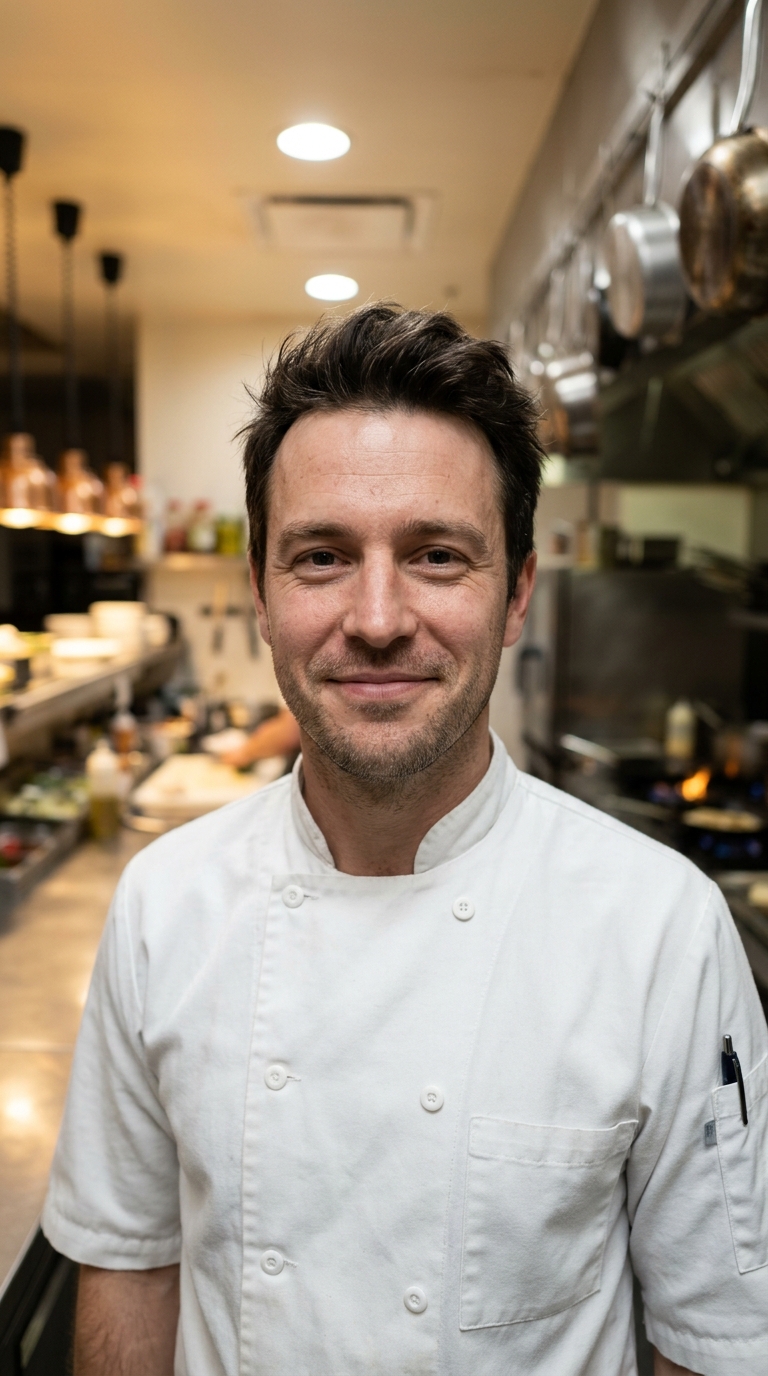
Before
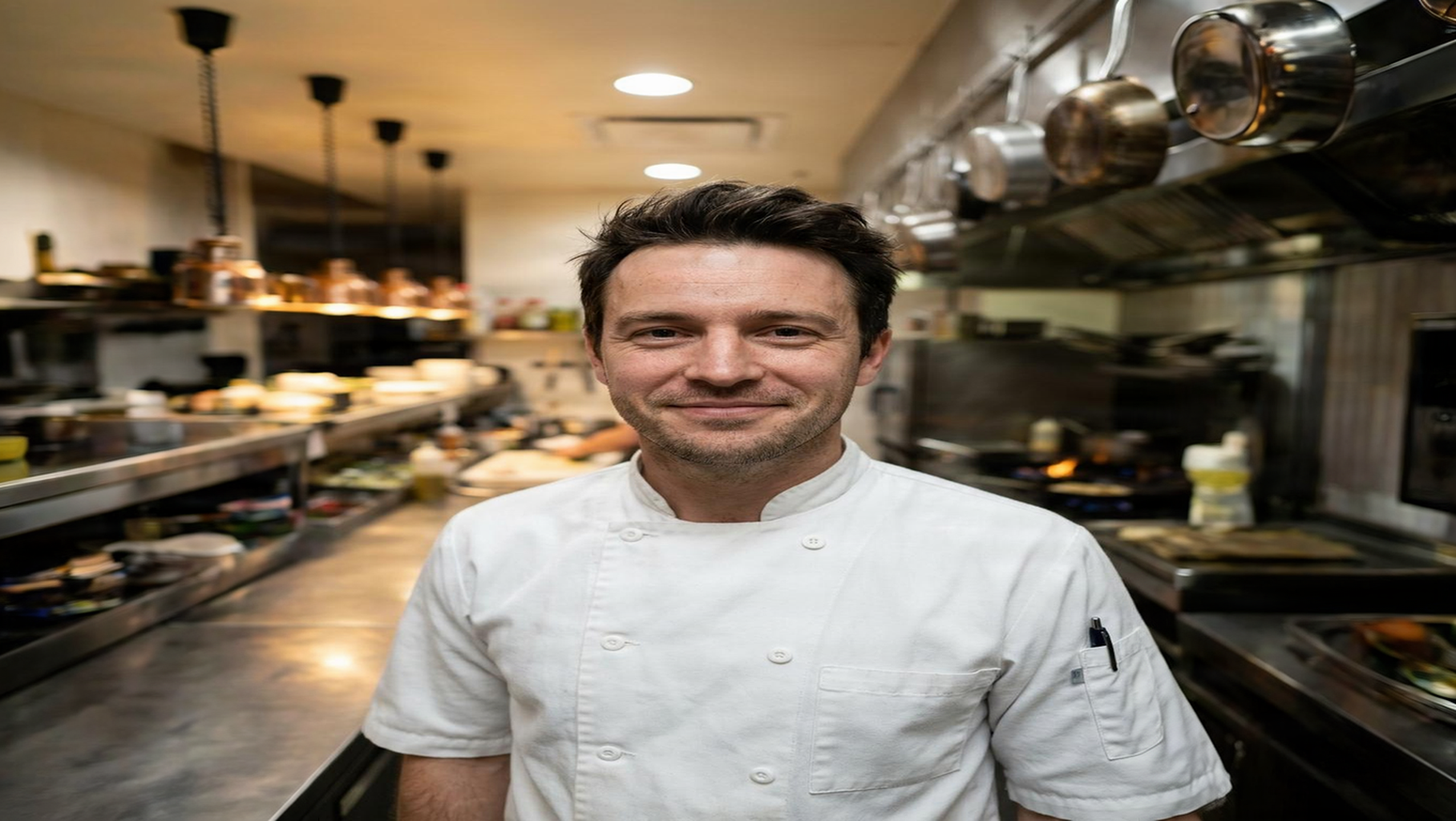
After
A vertical kitchen photo extended to 16:9, with the new sides filled in.9:16 → 16:9
A vertical kitchen photo extended to 16:9, with the new sides filled in.

Start from an example

How to use AI Image Extender in 3 steps

  1. Upload your photo

    Sign in and upload one JPG, PNG or WEBP up to 15 MB. A photo with some open background near its edges, like sky, floor or wall, extends most naturally.

  2. Choose the new shape

    Pick 16:9, 9:16, 1:1 or 4:5. Optionally tell the AI image extender what's around the photo, like "more of the garden".

  3. Extend the image

    Press Extend image. The wider or taller PNG is saved in My Videos, ready to download and post.

What AI Image Extender does

Four shapes for every platform

16:9 landscape for YouTube and slides, 9:16 vertical for Reels, Shorts, TikTok and Stories, 1:1 square for profile and feed posts, and 4:5 portrait for feed posts that take up more of the screen.

Your photo stays untouched

The original is placed in the centre at its own size, and only the new area is drawn. Faces, products and text in your photo are not redrawn or cropped.

Edges that match the scene

The added area continues what's already there: the horizon line, the floor, the wall colour, the light direction. A beach keeps going as beach, a street keeps its buildings.

An optional hint

Type what should be around the photo, up to 300 characters, such as "more sky and mountains" or "a wooden table". Leave it empty and the AI decides from the photo itself.

Uncrop instead of crop

Turning a landscape photo into a 9:16 Story normally means cutting off most of it. Extending adds height above and below instead, so the whole original stays in the frame.

Comparison

Why use AI Image Extender instead of cropping to the new shape?

Cropping fits a photo to a new shape by throwing parts of it away. Extending keeps the whole photo and adds what's missing.

FeatureAI Image ExtenderCropping to the new shape
Your original photoKept whole, in the centreEdges cut off to fit the frame
Landscape to 9:16New sky and ground added above and belowMost of the width is lost
Subject at the edgeStays in the pictureOften cropped out or cut in half
Shapes16:9, 9:16, 1:1 or 4:5 in one choiceAny shape, but only by removing picture
OutputA PNG saved in My VideosA smaller image than you started with
PriceOne flat 35 credits per imageNo cost, but you lose part of the photo

What you can make with it

A landscape photo as a 9:16 Story

You took a wide photo of a mountain lake and want it as a full-screen Story without slicing off both sides.

  • Choose 9:16 vertical. The photo stays full width and new sky and water are added above and below.
  • Type "more sky above, more lake water below" to steer what's drawn.
  • Leave the top and bottom of the result for your Story text or stickers.
  • For a feed post instead, use 4:5, which adds less and keeps the photo larger in the frame.

A vertical phone photo as a 16:9 thumbnail or slide

Your product shot is a tall phone photo, but the video thumbnail and the presentation slide are both landscape.

  • Choose 16:9 landscape. New background is added to the left and right.
  • Hint at the setting, like "a light wooden table and a white wall", so the sides look like the same room.
  • The product stays in the centre, with space on either side for a title.
  • Need the product on a plain background first? Run Background Remover, then extend.

A square profile or feed photo from a tight crop

A portrait crop of you is too tight for a square profile picture: the top of your head touches the frame.

  • Choose 1:1 square. Extra space is added on the sides that need it.
  • Hint "more of the same plain background" to keep it simple behind you.
  • The face is kept exactly as in your photo, since only the new edges are drawn.
  • If the photo is already square, nothing new is added, so pick a different shape.

Who it's for

Social media creators

Reuse one photo as a 9:16 Story, a 4:5 feed post and a 16:9 YouTube image without cropping out the subject.

Online sellers

Give tight product photos breathing room for banners, ads for your brand and listings with a fixed shape.

Designers and marketers

Get extra background for headline space on posters, slides, banners and email headers.

Photographers

Rescue shots framed too tightly, or turn a landscape frame into a vertical one for sharing.

Tips for the best result

  • Pick a shape different from your photo's own. Extending a 16:9 photo to 16:9 adds nothing.
  • Simple edges extend best: sky, sea, sand, grass, plain walls and floors. A person cut off at the edge leaves the AI to invent the rest of them.
  • Use the hint for what's around the photo, not for changes to the photo itself. The original isn't redrawn.
  • Keep hints short and visual: "more snowy forest", "a marble countertop", "open blue sky".
  • Upload a good-sized original. The full extended canvas is capped at 5,000 pixels on its longest side, so a very large photo is scaled down to fit.
  • Want the new canvas even sharper? Run the result through the Image Upscaler.

Frequently asked questions

How do I extend the background of a photo?

Upload the photo, choose a new shape such as 9:16 or 16:9 and press Extend image. The AI adds new background around your photo and saves a PNG in My Videos.

Can I change a photo's aspect ratio without cropping it?

Yes. That's what this tool does: your whole photo stays in the centre and new picture is added on the sides that need it.

Which aspect ratios can I extend to?

16:9 landscape, 9:16 vertical, 1:1 square and 4:5 portrait.

How much does the image extender cost?

35 credits per image. The price is the same for every shape and every photo size up to 15 MB.

Does it change my original photo?

No. Your photo is kept as it is in the centre, and only the added area is drawn by the AI. Very large photos are scaled down so the full canvas stays within 5,000 pixels a side.

Can I tell it what to add?

Yes. The optional hint, up to 300 characters, describes what's around the photo, such as "more sky and mountains".

Can I turn a horizontal photo into a vertical one for Reels or TikTok?

Yes. Choose 9:16 and the AI adds new space above and below your photo, so it fills a phone screen.

Which file types can I upload?

JPG, PNG and WEBP, up to 15 MB. The result is a PNG.

Do I need an account?

Yes. Sign in with Google or email; each job costs credits from your balance, and the result is saved in My Videos.

What if a job fails?

If a job can't finish, the credits it used go back to your balance automatically.

More AI Video Tools

All 54 tools →

Ready to try AI Image Extender?

Extend a photo to 9:16, 16:9, square or 4:5, with the new edges filled in. 35 credits, and the result is saved in My Videos.

Extend image