AI tool · from 338 credits · Refunded if it fails

Educational Video Maker for Short Lessons

Type a lesson topic or paste the text you already teach from. The AI turns it into a narrated short video with a realistic documentary-style image for each point, captions that follow the voice and quiet background music.

  • InputA lesson topic or your own text
  • Length30 · 45 · 60 s
  • LookDocumentary (or 3 other styles)
  • Format16:9 or 9:16

Set it up

Try an example
This is
Format
Visual style
Length
Motion
Narrator
Captions
Music
Estimated338 credits
Ways to pay less
  • A 30-second lesson with moving stills and music is 338 credits; 60 seconds is 620.
  • Voice only is cheaper: 283 credits at 30 seconds and 514 at 60, a good fit for focused study clips.
  • AI video clips for every scene raise a 30-second video to 2,038 credits, so keep moving stills for most lessons.

Need something else? More AI Video tools or all 54 tools

How can I make an educational video with AI?

Educational Video Maker is a tool that turns a lesson topic or your own teaching text into a short narrated video. Type a topic such as "why the Moon has phases" and the AI writes a narration with a hook and a closing line, or paste your text and it is read word for word. Each point of about four seconds gets a documentary-style image, read by one of 22 AI voices with word captions and music, in 30, 45 or 60 seconds.

Example
TopicCinematicMoving stills30 s
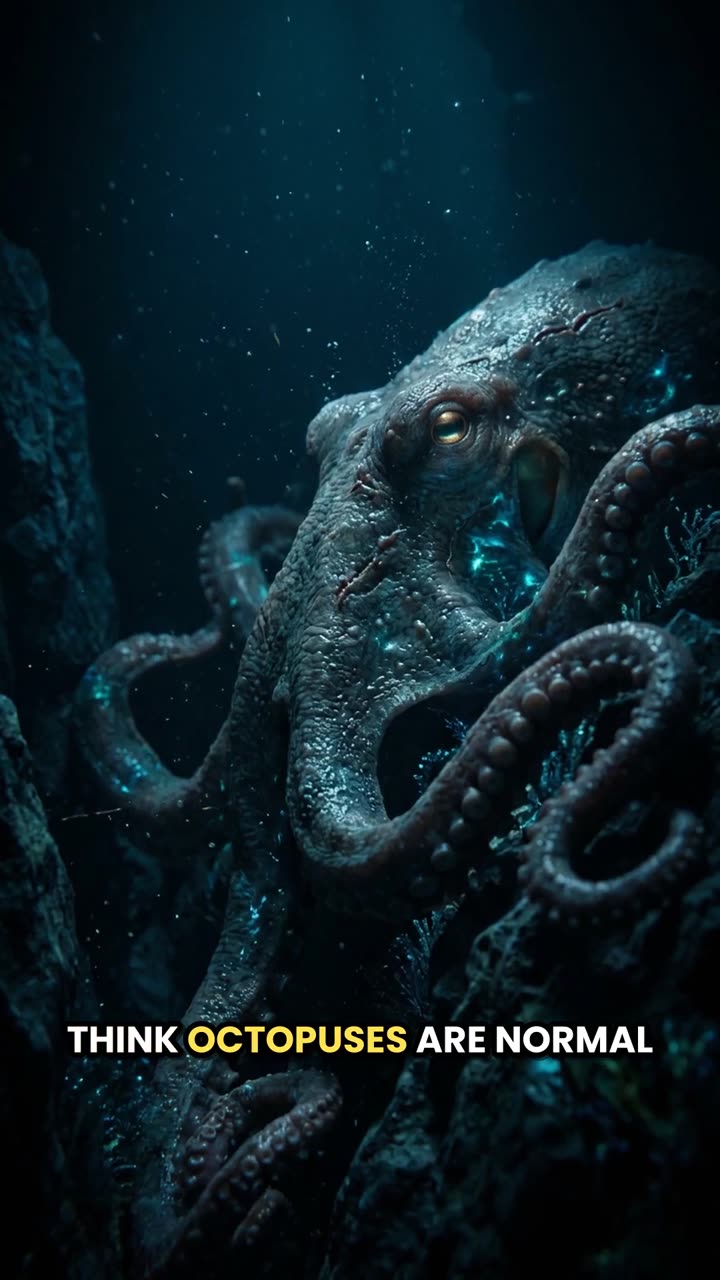
The topic "3 facts about octopuses that sound made up" became this 30-second short.

Start from an example

How to use Script to Video (Faceless) in 3 steps

  1. Enter the lesson topic or notes

    Sign in and type the topic for your educational video, or paste up to 3,000 characters of your own text and set "This is" to "My script".

  2. Pick the length and narrator

    Documentary and 16:9 are set. Choose 30, 45 or 60 seconds, a voice, and whether you want captions and music.

  3. Create the lesson video

    Press Create video. The price is on the button, and the MP4 is saved in My Videos for you to download or play in class.

What Script to Video (Faceless) does

Realistic images by default

This page opens with the Documentary style: natural light, real-world textures and the framing of a nature or science magazine photo. It suits science, geography and history better than cartoons.

Your lesson text, read as written

Choose "My script" and your words are not changed. The AI only splits them into scenes and draws a picture for each, so the definitions and dates are the ones you checked.

Captions for reading along

Word captions highlight each word as it is spoken. Learners can read along, and the video still works in a quiet library or a classroom with the sound low.

Sized for a board or a phone

16:9 is set for a classroom screen, a slide or a course page. Switch to 9:16 for a revision clip students watch on their phones.

A calm narrator

Pick from 22 AI voices. Rachel, Alice, Daniel and River read steadily, which helps when the content is new to the listener.

Comparison

Why use Script to Video (Faceless) instead of traditional video production?

A faceless video usually needs a script, stock footage, a voiceover, captions and music. Here they come from one form.

FeatureScript to Video (Faceless)Traditional video production
InputA topic, or your script read word for wordA script, a storyboard and a shot list
VisualsAn image for every scene in one of four styles, as stills or AI clipsFilming, or buying and searching stock footage
VoiceoverOne of 22 AI narrators, synced to the scenesRecord yourself or hire a voice actor
CaptionsWord-by-word captions timed to the voiceTranscribe and time them by hand
MusicAn instrumental composed for the video and mixed under the voiceLicense a track and mix it yourself
TurnaroundA 1080p MP4 in minutes, from 338 creditsDays of production and editing

What you can make with it

A one-minute hook to open a lesson

Start the class with a short video that raises the question the lesson answers.

  • Type the topic as a puzzle: "why we see only one side of the Moon".
  • Choose 60 seconds and keep Documentary for real-world images.
  • Play it on the board, then ask the class what they think the answer is.
  • Check the narration first; the AI writes from general knowledge and can be wrong.

Revision clips from your own notes

Turn a summary you already wrote into a short video students can rewatch before a test.

  • Paste a summary of about 70 words for 30 seconds or 140 words for 60.
  • Set "My script" so the definitions stay exactly as you wrote them.
  • Switch to 9:16 if students will watch on their phones.
  • Make one clip per topic so each video stays short and findable.

A short history or geography story

One event or place, told in under a minute with a picture for every moment.

  • Pick one focused story: "how the Silk Road moved paper from China to Europe".
  • Try the Cinematic style for a more dramatic look.
  • Keep music on; it plays low under the narration.
  • The images are illustrations, not archive photos, so say so when you present it.

Who it's for

Teachers

Make a lesson opener or a recap clip without filming yourself or editing slides.

Online course creators

Add short narrated videos between written lessons to break up long modules.

Tutors and homeschooling parents

Turn the topic of the week into a video a learner can watch twice.

Educational channels

Publish short science, history and "did you know" videos with a consistent narrator.

Tips for the best result

  • Say who it is for in the topic: "for 10-year-olds" or "for first-year students" changes the wording and the examples.
  • For anything that will be tested or graded, write the script yourself. The AI can make mistakes when it writes from a topic.
  • Keep one concept per video. A 30-second video has about 72 words; that is room for one idea and one example.
  • Images are made without text, so labels, diagrams and formulas won't appear on screen. Put those in your slides or worksheet.
  • Make the landscape version for class and a vertical version for students' phones as two jobs.
  • Use the same narrator across a series so the videos feel like one course.

Frequently asked questions

Can AI make educational videos?

Yes. Type a lesson topic or paste your notes and the AI makes a narrated video with an image for each point, captions and music.

Is the information in the video accurate?

Not guaranteed. When the AI writes from a topic it can make mistakes, so check the narration, or paste your own text and it is read word for word.

How much does an educational video cost?

338 credits for 30 seconds with moving stills and music, 493 for 45 and 620 for 60. Voice only costs less.

Can I use the videos in my classroom?

Yes. Download the MP4 from My Videos and play it on your screen or put it on your class page.

Can it show diagrams, charts or formulas?

No. The images are drawn without text, so diagrams and formulas need to go on your slides or worksheet.

How long can a lesson video be?

30, 45 or 60 seconds. For a longer lesson, make a short series, one video per concept.

Can I turn my slides into a video?

Partly. Paste the text from your slides as "My script" and it is narrated and illustrated; the slides themselves aren't used as images.

Does it show real historical people?

No. The images avoid real people's names and likenesses, so a history video shows scenes and places rather than portraits.

Do I need an account?

Yes. Sign in with Google or email; each job costs credits from your balance, and the result is saved in My Videos.

What if a job fails?

If a job can't finish, the credits it used go back to your balance automatically.

More AI Video Tools

All 54 tools →

Ready to try Script to Video (Faceless)?

A topic or script becomes a narrated video with visuals, captions and music. from 338 credits, and the result is saved in My Videos.

Create video