How to Make a Sofa Outfit Transition AI Video
How to make a Sofa Outfit Transition AI video from one photo: choose a full-body portrait, check all four looks and post the reveal honestly.
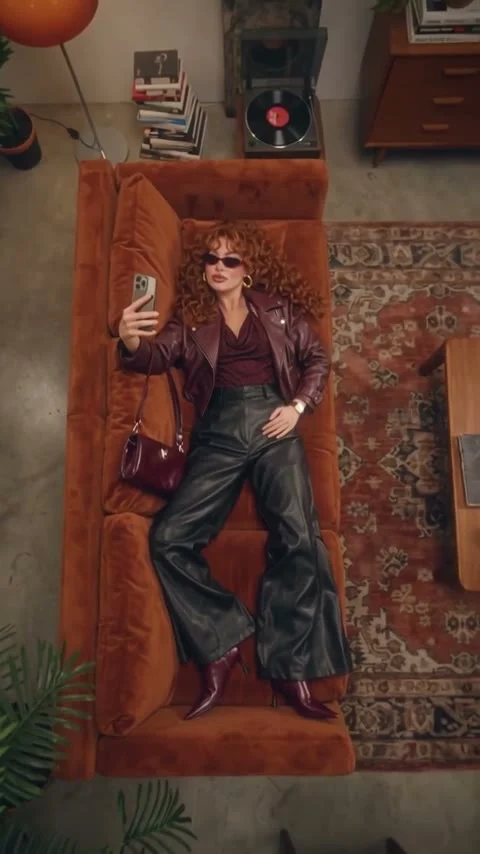
The Sofa Outfit Transition turns one photo into a 12-second, four-look reel filmed from above a rust-colored sofa. To make it, upload a clear picture of one adult with their face and full body visible, then inspect each outfit change before posting. The camera whips are part of the joke, but they can hide a bad face match.
The scene is a fashion reveal, not a closet tour
The Sofa Outfit Transition template starts with an overhead view of someone stretched out on a velvet sofa. The camera holds long enough for you to register the clothes, whips through a barrel roll, and returns to the same setup with another look. Four looks share the room. You aren’t filming four takes in your apartment.
That fixed sofa does a lot of work. It gives the eye one stable point while the wardrobe changes, so the viewer can notice the reveal instead of spending the whole reel figuring out where they are. If you cover half the frame with a caption, you throw away the very thing that makes the cut legible.
The live form lists a fixed 12-second video, a vertical 9:16 frame and four looks. The page describes a generated sample made with an example portrait; its cover is a frame from that sample. Neither is evidence that your face, hands or clothes will render the same way. Treat the preview as a map of the edit, not a guarantee.
One upload, four outfits
There’s one required input labeled Your photo. No second person, no outfit collage, no four separate wardrobe uploads. The form asks for one front-facing, well-lit person, ideally shown full body; it says your face and overall build carry across while clothing changes. It accepts JPG, PNG or WEBP. Check the form’s current file limit and credit estimate before you submit rather than relying on a screenshot of someone else’s session.
Pick a picture where the subject’s head isn’t tiny. A distant street shot may show the shoes perfectly but leave too little face to recognize after the overhead camera pulls back. Conversely, a tight headshot makes the full-body styling guesswork. A standing portrait with room around the shoes is a better compromise. Keep hands clear of the face, and avoid sunglasses in the upload if you want an honest face check later.
The template’s look list names burgundy leather street style followed by a lighter ivory-and-blush look. Black velvet comes next; midnight-navy embroidery finishes the sequence. Those are built into the format. Your input outfit isn’t a vote on which one comes next, and the form doesn’t offer a wardrobe picker. If a specific jacket must appear exactly as sold, this isn’t a product-demo workflow. Don’t label a generated garment as a real item from your shop.
Build the edit around the whip, not the outfit count
- Choose an adult’s portrait you own or have permission to use. Leave enough body visible to establish proportions, and make sure the face is sharp at normal phone size.
- Open the Sofa Outfit Transition creation form, add that one image to Your photo, then check the displayed cost and submit. The scene, four looks and frame are set by the template.
- Watch the finished clip at normal speed, then scrub the first clean frame after every camera whip. Check the face, hairline, hands and clothing edges against your portrait. If a transition conceals a weird limb, it may still flash on a loop.
- Play it once with the sound on and once muted before writing your caption. The page describes the sample as having sound, but a reference or sample track doesn’t prove what audio your export contains or what music you’re allowed to reuse. Add licensed audio in your posting editor if your export needs it.
The reel is already vertical. Resist the reflex to crop it again for a story layout; an aggressive zoom could chop off the sofa and make every outfit change look like an unrelated selfie. Leave caption space where it doesn’t sit over the subject’s face or the new outfit. Preview the platform’s feed crop before hitting publish.
Give viewers a reason to stay for look four
A plain “four outfits” caption spoils the structure. Try a choice prompt tied to the actual progression: “The first look is for errands. Which one gets the night-out invite?” It gives someone a reason to watch the last change and then comment. Keep the text off the center of the overhead shot. Small type on a busy rug is basically a secret message.
You can also cut a short reaction after the finished reel, if you’ve filmed one yourself, but don’t present the AI scene as footage of a real wardrobe shoot. A simple “AI outfit edit from one photo” disclosure keeps the fiction clear. Ask consent before using anyone else’s portrait. Avoid pretending the person modeled clothes they haven’t worn or endorses a brand they haven’t worked with.
For an edit that preserves a photographed outfit rather than replacing it with four prescribed looks, the Street Style Walk photo guide tackles a different problem: keeping the original clothing readable through a moving shot. Here, the surprise is the replacement. Check the final frame as carefully as the first, since a loop will put them next to each other.
If the final cut isn’t ready to post, take notes by look number rather than calling the whole video “off.” Look one may have a clean face but a bent phone; look three may have an intact silhouette but a smudged cap. That distinction tells you what a new source portrait might fix and what may be part of the template’s overhead framing. Don’t promise a client a particular garment detail until you’ve checked the actual export.