How to Use Trendai AI Video Tools to Finish a Short
Use Trendai AI video tools to turn ideas into clips, fix audio, add captions and reframe for social feeds without running unnecessary jobs.

Trendai AI video tools can make footage from an idea or fix a clip you already have. Open the Tools hub, pick the job you need, then check its inputs and credit estimate before you run it. A noisy recording needs audio help; a clip that doesn’t fit the feed needs a resize, not every tool at once.
Start with the file you already have
No footage yet? The Tools hub currently groups 43 tools into six sections: AI Video, Captions & Text, Voice & Audio, Music, Edit & Convert, and Photo & Image. Under AI Video, Script to Video turns a topic or script into a narrated clip; Article to Video starts from an article or PDF. Photo to Video animates a still, while Talking Photo adds speech to a portrait. Pick the input that matches the material on your desk, not the longest list of features.
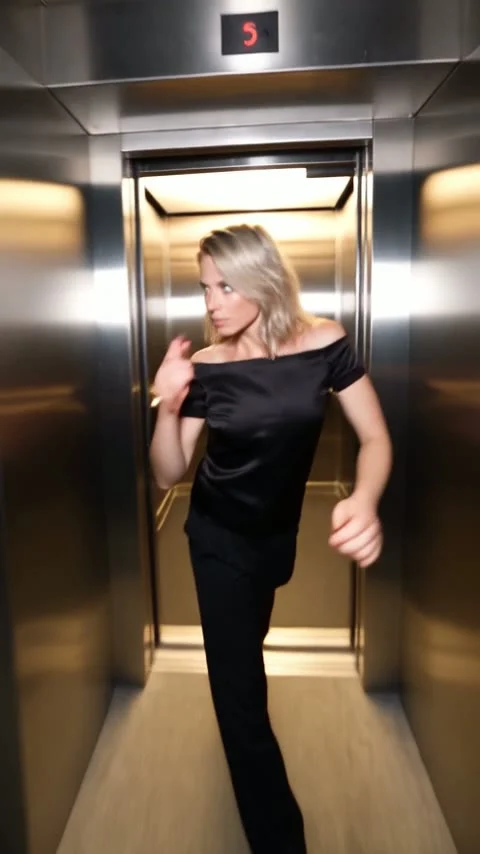
Already have a trend clip? Skip generation. The French Protest Dancer guide starts from one photo and produces a vertical dance scene; after you review its export, the useful next job might be a caption or a clean cut, not another generated dance. The Tools area is a separate set of tasks you can use to finish that file. Don’t mistake it for a single button that automatically chains every step.
If you have a long recording, the hub lists Long Video to Shorts to find and cut moments into captioned vertical clips. That’s a different starting point from turning an article into a video. Upload rights matter in both cases. Don’t feed the service somebody else’s recording just because the transcript would make a good post.
Fix the rough part before you decorate it
Listen to the clip once with headphones. If background noise makes a spoken line hard to hear, the hub’s AI Audio Enhancer is meant to clean speech. If there’s no spoken line at all, AI Voiceover Generator can create narration from text with built-in voices. The listing also includes Video to Text for a transcript and subtitle files, and AI Caption Generator for word-by-word captions burned into a video. Those are different outputs. A transcript file doesn’t put readable subtitles on your uploaded clip by itself.
Pick one problem. A crisp voice won’t rescue a first second that should have been cut. The Trim Video page lets you drag a start and end slider after uploading, then saves the kept portion as an MP4. If you intend to caption a long recording, cutting it first can also reduce time billed by a per-minute caption tool; compare the displayed prices before starting either job. Each operation is its own job.
Need a hook rather than speech subtitles? Add Text to Video places a line of text at the top, center or bottom and keeps it there for the whole clip. It supports up to 200 characters, but that’s a limit, not a writing target. Six words are often easier to read while somebody dances. Proofread before submitting: changing a typo means running another job.
Reframe for the feed, not just the dimensions
The Resize Video tool offers 9:16, 16:9, 1:1 and 4:5 output with three fill choices: blur, crop or bars. Crop fills the frame but can cut a second person out. A blurred background preserves the original picture when the sides matter. Watch the edges and the bottom of the result before you add on-screen text, especially if the subject’s hands or feet tell the joke.
A rotated vertical clip doesn’t always need resizing. The Resize page itself points to Rotate Video when a clip was simply saved sideways. And don’t confuse a repeated file with a perfectly smooth loop: Loop Video joins two to ten copies of your clip, including its sound. Review the join. A sharp jump in motion or a repeated spoken word is still visible after the file is saved.
Some quick fixes are less glamorous. The hub also offers Merge Videos, Add Logo / Watermark and Increase Video Volume. Those are useful when the source is already good and you know exactly what’s wrong. Skip an extra pass if the sound and framing already survive a phone-screen preview.
Check the price and the output on each pass
The Tools page says the jobs use credits and results are saved to My Videos after you sign in. It currently lists quick video edits like trimming and resizing at 20 credits per job, while several AI jobs are priced by seconds, minutes or characters. Prices and limits vary by tool. Open the individual page for your chosen job and read its live estimate before pressing the button; don’t assume the cost of one edit covers the next.
For a practical first pass, cut the dead start, inspect the audio, add captions only if the clip needs them, and reframe only if the target feed would hide the subject. Download or retrieve each finished file from My Videos as needed for the next task. That is an editorial order, not a promise that the site has an automatic multi-tool pipeline.
Before posting, watch the final export on a phone with sound on and sound off. Check captions against the actual speech. Leave faces and feet clear of overlays, then inspect the first and last frame for jumps. Get consent if an AI tool makes a person speak or changes their likeness. Disclose the edit rather than passing it off as unaltered footage.