How to Make an Avatar Seven Havens Bender Photo
How to make an Avatar Seven Havens bender photo from one portrait: choose an element, check the still image, and share a fictional fan-style edit.
To make an Avatar Seven Havens bender photo, upload one clear portrait to the Avatar Seven Havens template, then choose Water, Earth, Fire or Air. Trendai makes a vertical still image, not a video. Start with a face you can recognize at phone size, then judge the generated pose and element before sharing it as a fictional fan-style edit.
Pick a photo that leaves room for the magic
The form has one required upload, labeled Your Photo. It asks for one person with a clearly visible face in good light; a front-facing chest-up or waist-up shot is suggested. Accepted files include JPG and PNG, plus WEBP, with a 50 MB maximum shown beside the upload field. One photo is enough. You don’t need four portraits for four elements. That would turn a simple casting choice into a folder-management hobby.
Choose a picture where your face and hair aren’t hidden by sunglasses or a heavy filter. A plain wall helps, but you don’t need to photograph yourself in robes or make a bending pose first. Leave some space around your shoulders if you can: the image has to fit both your likeness and a much louder costume. Keep it solo. If a friend is in the frame, pick another photo instead of asking the image model to guess who you meant.
Only use your photo or a consenting adult’s. The live form asks you to confirm that you own the photos or have permission and won’t use them to impersonate a real person or celebrity. Keep that same standard when you make a group post: each person’s permission matters even if the result is obviously fantasy.
Let the element set the scene
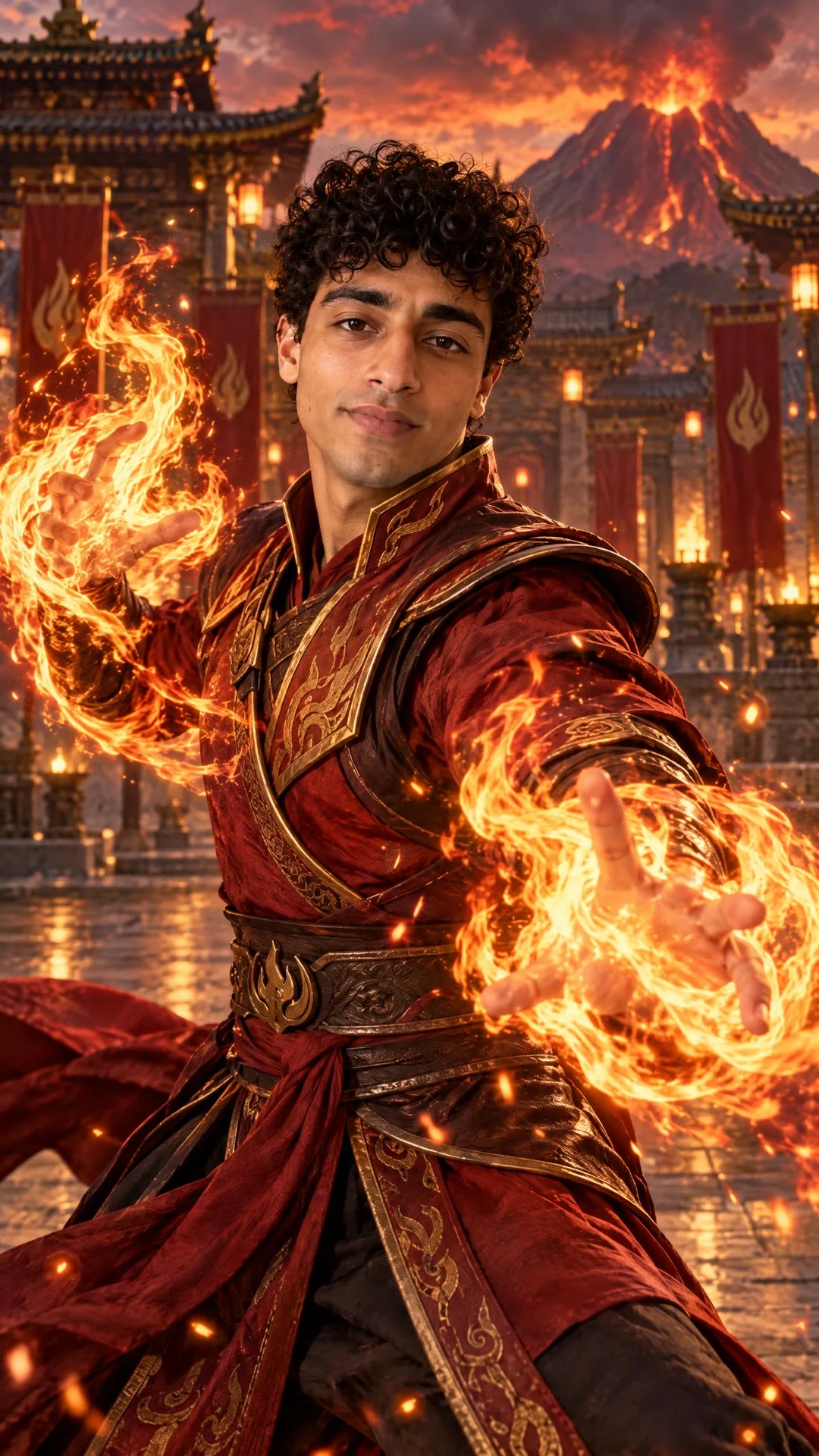
The template’s element cards are a selector, not four more photo slots. The four choices change the intended outfit and stance. The setting changes too. Water points toward a cold blue shoreline; Earth uses green-and-gold robes with rising rocks. Fire calls for red-and-gold clothing with flames in a courtyard, while Air places a saffron-robed figure near mountain spires and clouds. These are targets. The page’s described treatments aren’t a promise that every generated detail will land perfectly.
The source poster shows one curly-haired figure in red-and-gold robes, hands wrapped in bright flames, with a lit courtyard and volcano behind. It’s a Fire-themed reference still, not proof that your uploaded face will look the same. The separately labeled Sample Output on the page is also an example, not an output made from your photo.
Pick your element for the contrast it makes with your usual posts. An Air portrait after a week of indoor selfies has a clean visual surprise; a Fire portrait can get buried if your grid is already orange. That’s a framing decision, not a personality test. Want to make a set? Reuse the same source photo across the four choices so the changed scenery does the talking.
Make the still, then inspect it
- Open the Avatar Seven Havens image template and upload one permitted photo in Your Photo. Check the thumbnail. Your face should still be visible at that size.
- Tap one Element card. Choose Water or Earth; Fire and Air are the other options. The selection determines the scene; there’s no separate text prompt or second-character upload visible in the form.
- Confirm the permission statement, check the displayed credit cost and press Generate Image. The live button shows 57 credits. Review the finished image in your generations rather than treating the poster or sample as your result.
Check the face first. Then look at the hands where the element meets the fingers, the shape of the robe around the shoulders and the edge of any rocks or flames. Zoom in. A dramatic background won’t save a portrait if your eyes no longer look like yours. If the likeness is off, try a sharper, straighter source photo rather than claiming the effect is a faithful record of your appearance.
The page describes a 9:16 portrait at 1440 × 2560. This is an image effect with a still-image export; there’s no clip duration or soundtrack to set in this form. No timeline here. If you later place the still into a Reel or TikTok edit, you’ll add motion and timing in a separate editor, along with any music. Don’t label the source poster a video preview.
For another costume-forward effect with a different delivery format, see the earlier armored warrior AI video guide. That one is about keeping a face readable through moving shots. This one lives or dies in a single frame.
Turn four options into a post people can answer
The obvious caption is "Which element am I?" Try giving viewers something less vague to choose between: show two versions side by side, label each by element and ask which portrait you should use as your profile image. Keep the eyes at similar heights so viewers compare the styling rather than a random crop. A four-image carousel works too, but put your clearest likeness first; people shouldn’t have to reach slide four to find you.
When sharing, describe it as your own AI-made, fan-style bender portrait. The template page identifies itself as independent and not affiliated with the Avatar rights holders, so don’t present your image as an official character reveal or promotion. Avoid dropping unlicensed series footage or soundtrack into an edit just because the visual theme reminds you of it. If the platform you’re posting on requires an AI-content label for synthetic images, use it.
Save the original still before you add text overlays. In a Story, leave your face and the bending hand clear of the reply box; in a carousel, keep your element labels in the same corner so they don’t compete with the effects. You can browse other ideas in the Trendai trends gallery, but for this post, let the choice between the four portraits be the whole conversation.