How to Make a Hop Hop Hop AI Video
Make a Hop Hop Hop AI video with two correctly assigned photos, check the place swap and audio, then post the eight-second vertical edit honestly.
The Hop Hop Hop AI video puts two subjects into an eight-second vertical clip: one points toward the person or pet behind them, then a cut trades their positions and the hopping turn. To make it, upload a separate photo for each role on the Hop Hop Hop template, and check that each identity survives the swap before posting.
The joke is the handoff
The source reference starts with a subject near the lens and another farther back. A point sends your eye toward the background hopper; the cut then moves that second subject to the foreground. It’s a small joke about who gets the spotlight. If the viewer can’t tell who’s who after the cut, the whole thing becomes two people bouncing for no apparent reason.
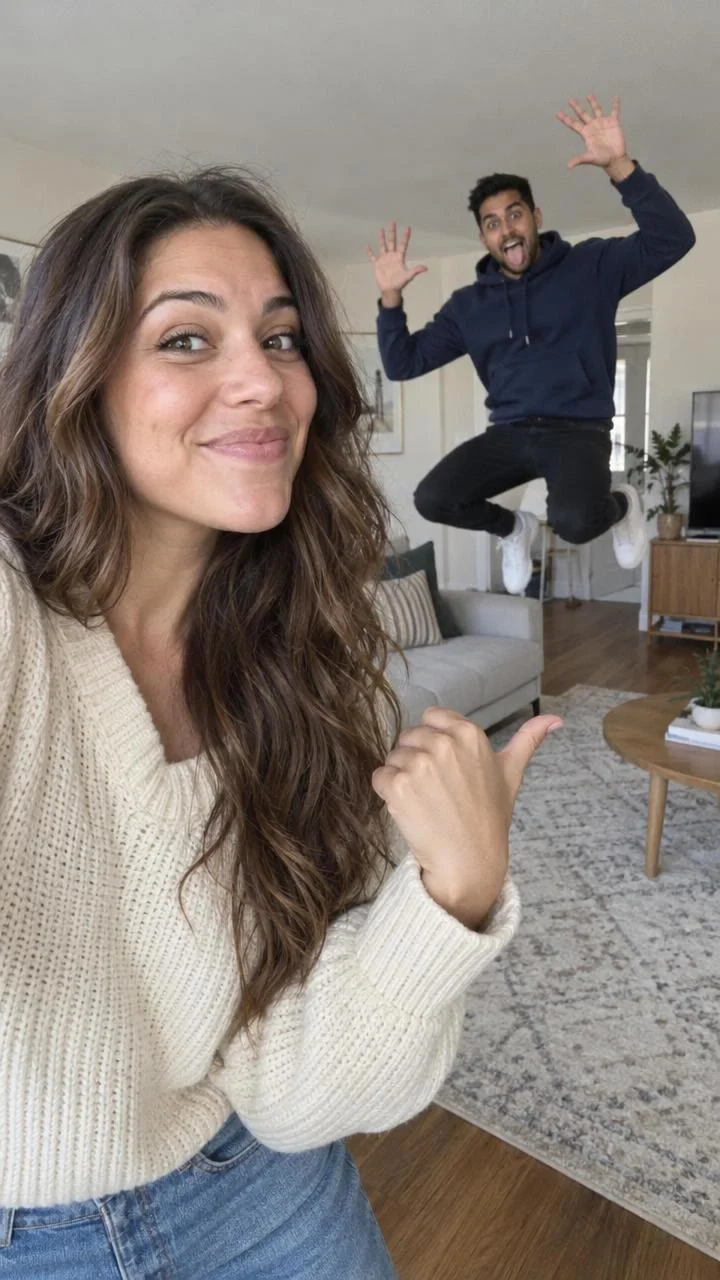
The live form describes an 8-second, 9:16 video and labels its preview as source footage, not a personalized result. In the reference frame, costumed characters stand outside at night. The page’s poster, by contrast, shows a woman near the camera and a man jumping in a bright living room. That’s cover art, not a promise that your export will take place indoors. Follow the source preview and the form for the action; treat the cover as an illustration of the two-person gag.
Watch the positions switch. This is a place-swap, not a face-swap. Slot one remains the pointing subject even when they move to the background; slot two stays the hopper who later comes forward. Hold that map in your head while picking photos, because the initial foreground position can make it tempting to give the most animated image to the wrong upload box.
Cast the slots, not just two faces
The first required upload is labeled “Upload the first person.” That person starts in front and points back. After the cut, they hop in the background. Choose a clean shot of one consenting adult with an unobstructed face; leave enough of the shoulders and outfit visible to give the model more than a passport-style crop. Avoid a friend already standing behind them in the source photo. There are two cast slots, not one group-photo slot.
The second required upload is labeled “Upload the second person or pet.” That subject begins in back and hops first, then takes the foreground after the cut. A pet is allowed in this slot; you don’t need a human photo to fill it. Show the whole animal if you can. A nose pressed against the phone won’t tell the model much about its shape or fur. If you’re using another person, keep that photo separate and equally clear.
Don’t assign roles from the poster. Its foreground and background composition is easy to read, but the form labels are what govern your upload order. Use a photo whose clothing is recognizable in both the wide background moment and the close foreground moment. Two friends in identical dark hoodies might look fine in stills and become hard to distinguish at the cut; a difference in color or silhouette does more work than an elaborate caption.
For a pet, think about the jump as a playful AI portrayal, not a claim that your dog really performed the source move. Skip a photo where paws disappear into a blanket or the animal is half hidden behind a couch. You can still keep it casual. Clear beats studio-perfect here.
Make one pass, then inspect the cut
- Open the Hop Hop Hop video form. Put the foreground pointer in the first required slot and the background-first hopper, person or pet, in the second. Both fields accept JPG, PNG or WebP files according to the live form.
- Check the displayed resolution and credit amount in your session before generating. The form currently presents 480p and 720p choices; the length and vertical format are fixed at 8 seconds and 9:16. Don’t mistake a photo-prep crop for a setting that changes the exported frame.
- Watch the result all the way through before downloading it for a post. Pause immediately before and after the cut. Does photo one become the same subject in back? Does photo two come forward without borrowing photo one’s face or clothes? Look again at the hands, pet legs and edge of the frame when movement is fastest.
One frame can fool you. That review matters more than an impressive first frame. The template page says its source reference has sound, and the downloadable reference file includes an audio stream, but that doesn’t establish what your particular generated export retained. Play your actual result with sound on. Check the beat at the cut and whether any audio is missing or distorted; add only music you have permission to use through the platform’s licensed editor if needed.
If the roles merge, try photos with more distinct clothing, better lighting or a clearer single subject in each frame. Don’t assume a second render will repair a poor upload by itself. Look for a recognizable foreground face and a readable background figure before committing to a higher-resolution version.
Post the swap without pretending it happened
I’d keep this one as a quick “my turn, your turn” post rather than explaining the effect in three lines of overlay text. The point is the hook. Put a short label near the top if your pair has a story, like “Who gets the camera next,” then leave room for both subjects when the cut moves them. Keep the whole frame. It’s already 9:16 for a vertical feed; cropping into it again can push the background hopper out of view.
For another two-subject rhythm built around a shared action, the Pet Duo Dance guide is about casting two animals into a dance. Hop Hop Hop is different: its second slot can hold a person or a pet, and its punch line is the change in depth after a point, not synchronized dancing. Choose the template that fits the relationship between your two subjects, not just the fact that there are two of them.
Get permission from anyone whose image you’re uploading, and don’t use a stranger’s face for a surprise impersonation. The product form asks you to confirm rights and consent. If the clip could be taken for real footage of a person or a pet doing the stunt, label it as an AI-made edit and use the platform’s synthetic-media disclosure tools where applicable. A caption can be as plain as “AI version of our turn-taking routine.”
Before tapping Post, preview it on a phone with the sound on and the captions visible. The pointer’s hand must lead your eye to the second subject, and the cut must bring that same subject forward. If a caption covers the background figure, move the text, not the punch line.