360 Rotation AI Video: Make the Room Feel Real
360 rotation AI video guide: choose subject and room photos that hold together through a full orbit, then check the vertical clip before posting.
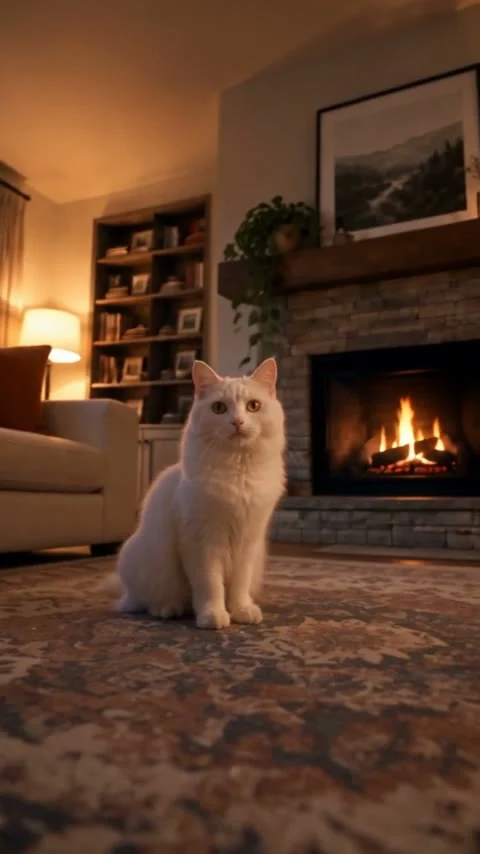
A 360 rotation AI video only looks convincing when the subject seems to belong in the room as the camera circles. Use one clear photo of the pet or person and a room photo with visible floor. The 360° Rotation template supplies the orbit; your job is to give that camera somewhere to travel.
The room is half the shot
A camera move that starts close to a face, pulls back and circles low around the subject will show much more of the room than a still portrait does. That’s the trap. The room photo can look lovely on its own and still leave the orbit nowhere to go.
Pick a scene where you can see the floor under the spot where your subject would sit. Look at the edges, too. A couch taking up the entire lower frame may look cozy in a room listing, but it crowds the path around a small dog. For the white cat in the template poster, the open rug gives the animal room to read against the fireplace and the furniture. The fireplace is background, not a second main character.
Avoid a heavily blurred room image. The generator has to invent views that aren’t in your picture, so a wall with indistinct edges gives it less structure to work with. Don’t promise a perfect reconstruction from a single still: the reverse side of a chair simply isn’t visible in the input. Think of the room shot as a visual brief, not a survey of your apartment.
Try the boring test: can you point to where the subject’s feet or paws would touch the floor? If not, find another room frame. Even a very fancy orbit can’t make floating paws look casual.
Unlike the bob haircut reveal, this effect needs a second image to establish the room around your subject.
Match the subject to the setting
The template asks for one subject photo and one room photo. Give it a front-facing face that stays legible in a close-up, then check that the body has enough space around it for the camera to pull back. A tight crop of a cat’s eyes can make a striking still, but it doesn’t tell the video much about the paws or body the orbit is meant to reveal.
Look at light direction. If the room is lit by a window on the left, a subject photo with a hard flash straight into the face can make the composited moment feel pasted in. You don’t need identical light setups; just avoid pairs that argue with each other. Fur edges and loose hair make that mismatch easy to spot.
Scale is another choice you control. Put a little dog into a giant empty hall and the low orbit can make the animal disappear after the pull-back. Put the same dog in a smaller living room with open floor and there’s still a face to return to. That’s a framing judgment, not a guarantee about what any generator will do.
For babies or other people, get their consent or a parent or guardian’s permission before using and sharing a photo. Use a room you’re comfortable showing publicly. A window view, house number or family photo on a shelf may say more about where you live than you intended.
Judge the orbit, not just the first frame
The finished clip runs about seven seconds, so review it all the way around before choosing a cover. Pause at the moment where the face becomes a full-body shot. Does the floor remain under the subject? Then check the far side of the orbit: do the major pieces of furniture still relate to each other, or does the sofa seem to move across the room?
Run the clip once without sound. The music can make a shaky transition feel smooth on the first watch. Silent playback makes it easier to see if the whiskers, fingers or chair legs flicker while the camera moves. The last face shot deserves its own check. If the eyes seem to change between the start and finish, a strong opener won’t save the loop.
Don’t crop so aggressively that the head touches the top edge when the camera returns. In its in-feed ad specifications, TikTok recommends vertical 9:16 for non-Spark placements and lists a minimum of 540 by 960 pixels for that orientation. Those are ad specifications, not a promise of how organic posts perform, but they’re a useful reminder to inspect the whole vertical frame before uploading.
YouTube’s Shorts upload instructions accept square or vertical files up to three minutes when uploading from a computer. Your seven-second vertical orbit fits the format on duration and shape; the real test is whether its subject remains readable with the app interface over it. Watch the published preview before you call it done.
Use the loop as the caption idea
The last face shot returns to where you started. Let that circular move carry the joke instead of covering the entire screen with text. “He inspected every corner and chose the rug” works as a sample caption for a pet shot; don’t pretend a generated orbit is documentary footage of a pet’s actual journey.
For a person, the room can be the punch line: their own bedroom suddenly gets the low-angle movie treatment. Save any text overlay for a part of the pull-back with empty wall space, and leave the face clear at both ends. If you need a different visual format entirely, browse the trends gallery rather than forcing a crowded room into a camera move built around open floor.
Before posting, choose a thumbnail from the moment the subject and setting are both visible. A face-only frame hides what makes this orbit different; a room-only frame loses the character. Aim for the point where the paws are planted, the rug is visible and the camera has just started to swing.