AI Bob Haircut Video From One Photo
Make an AI bob haircut video from one photo: pick a portrait that shows your hair, check the snip-and-reveal and label the result honestly.
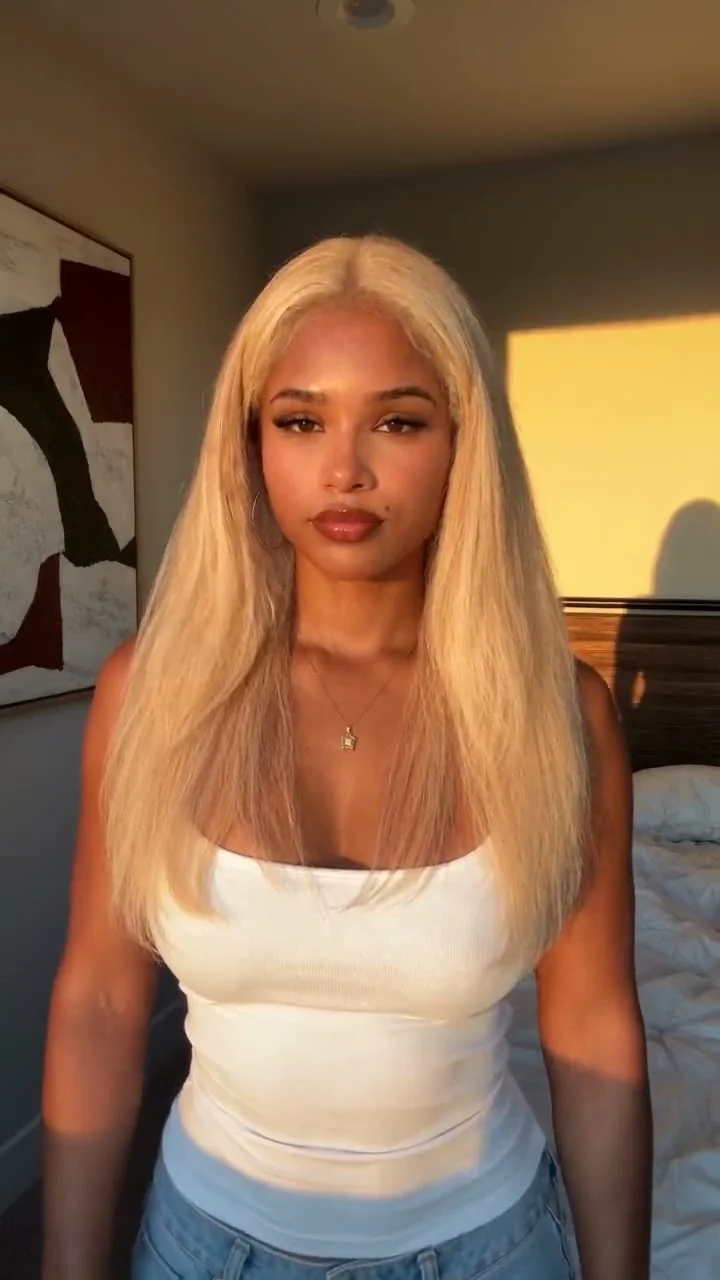
An AI bob haircut video turns one portrait into a staged snip-and-reveal clip; you don’t have to cut your hair or film a pair of scissors. Use a photo that shows your whole head and current length, generate the effect, then check whether the face and new hairline hold together before posting. Call it an AI edit, not a real haircut.
The snip needs a readable before
The payoff is the change in shape. Hair starts long enough for the new bob to look different, a snip happens, and then you see the shorter outline around the face. If the starting photo already shows chin-length hair, the reveal may feel like almost nothing happened. Not ideal. The entire plot is a haircut.
The Trendai bob-cut template takes one photo and describes a simulated self-haircut, with the face and outfit intended to stay recognizable along with natural hair color. Watch its sample before you upload. This is a moving effect, not a promise that a stylist could make your real hair fall that way. And no, you don’t need to supply an “after” photo.
For sounds or hashtags, check TikTok Creative Center’s trends page for your region instead of copying a month-old caption. A current sound can suit the cut, but the video still needs a clear before frame. No shape, no reveal. Music won’t fix that.
If you want to cast two people instead of changing one look, the Hotel Lobby duet guide shows why separate photos matter.
Make the bob video from one photo
- Choose the starting image. Pick a recent portrait that shows your actual hair length. A front-facing shot with the top of the head and both sides in frame gives you something to compare against the ending.
- Clean up the crop. Leave a little room over the head and around the shoulders. Remove a hat if it covers the hairline, and skip face-changing filters. Crop out other people rather than asking the generator to guess which face is yours.
- Open the bob-cut reveal template. Put that portrait in Your Photo and follow the uploader’s current file instructions. No scissors needed. The template makes the snip-and-reveal sequence.
- Generate, then scrub. Don’t judge it from the final frame alone. Pause at the snip, the first short-hair frame and the moment the head moves. If the face drifts or the part jumps across the scalp, try a cleaner starting portrait.
- Prepare the post. Watch the exported video on your phone with the caption in place. Keep the bob visible rather than covering the jawline with a giant text box. Label any side-by-side comparison “real photo” and “AI edit.”
Check the controls and displayed cost on the live page before you submit. An old walkthrough can’t tell you what the uploader accepts today; Trendai’s pricing page is the place to check current terms.
Pick a photo with room for the new shape
Hair against hair-colored background disappears. A simple wall behind your head helps you see where the ends land, particularly when your hair and shirt are both dark. No studio lighting needed. You do need to see the top of the head, the sides and enough shoulder to judge the length change.
Skip a selfie where one side is tucked behind an arm and the other is outside the crop. Same goes for motion blur, sunglasses over half the face or somebody else’s hair crossing your shoulder. A polished photo that hides the starting shape is a worse input than an ordinary clear one.
When you review the clip, watch for a part that flips sides, earrings that melt into hair and ends that float off the shoulders. My opinion: if the hairline slips during the snip, don’t post that take. People notice. Especially the forehead. Changing the input photo is more useful than writing an apology in the caption. For other one-photo effects, start at Trendai’s generator gallery.
A reveal isn’t a salon preview
If you’re considering a real bob, the generated clip can show you an idea for framing your face. It can’t tell you how your own hair will behave after a wash, how the back sits or what styling it’ll take on a regular morning. A stylist can talk through those things with multiple reference photos.
| AI bob reveal video | Hairstyle try-on or salon visit | |
|---|---|---|
| What you see | A moving snip and new shape from one portrait | Style options or advice for your own hair |
| Good for | A clearly labeled short-form edit | Talking through length and upkeep |
| Blind spot | Face or hair can shift between frames | A still preview may miss movement; a consult isn’t a finished cut |
Don’t use the ending frame as a guarantee of a real result. Save it as one reference if you like the shape, then bring photos of actual cuts when you talk to a stylist. The animated scissors are for your post, not your appointment.
Caption the effect honestly
Try an on-screen label like “AI bob from one photo” before the snip. Then ask a specific question: “Keep the length or try the bob?” People can answer that without having to pretend you’ve just left a salon. Get permission if the photo belongs to someone else, even if you’re only making a joke for your friends.
Check the available music in the app where you’re posting. If your export already has sound, listen for it before adding another track; doubled audio ruins a tiny reveal fast. TikTok’s For You explanation lists captions and sounds among video-information signals. Watching and sharing are interaction signals too. No special bob boost implied. Compare a cut that reaches the snip fast with one that holds on the starting hair for a beat, then look at your retention rather than guessing a universal best hour.
TikTok’s 2026 trend forecast describes people using the platform to compare recommendations and find answers after an initial search. So if comments ask whether the result is real, answer plainly. If they ask if a bob will suit their own hair, tell them this is an effect from one portrait, not a cut tailored to their texture.
FAQ
Can I make this without cutting my hair?
Yes. The template turns a single portrait into a simulated haircut video, so there’s no physical snip or separate after photo. Call it AI when you post it. Simple.
Do I need a full-body picture?
No. A portrait with the whole head, visible hair on both sides and some shoulder is more useful for this effect. Check the uploader’s current file limits before choosing the image.
Will the video predict how a real bob looks on me?
No. One photo doesn’t show how the back of your head or your hair texture behaves in daily life. Bring multiple real haircut references to a stylist if you’re thinking about the cut.