How to Make a Wedding Dance Floor AI Video
Make a Wedding Dance Floor AI video from one photo: choose the right outfit, check the snack beat and frame the fictional reception for posting.
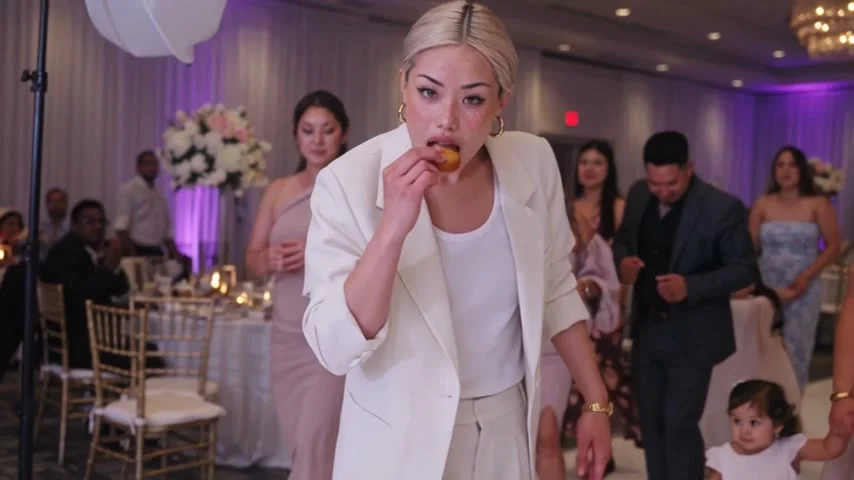
A wedding guest walks into a purple-lit reception, takes a bite of food, looks at the camera and heads into the dance crowd. To make a Wedding Dance Floor AI video, give the template one clear photo of yourself or a consenting adult. The clip is a fictional party moment, not footage from a wedding you attended.
The tiny story inside this wedding clip
The joke is confidence at exactly the wrong time. The guest arrives as though the reception has been waiting for them, pauses to eat, then leaves the camera behind. That snack beat matters more than a complicated dance move. It tells you who this guest is. Don’t spoil the bite. A caption that explains the entire joke before it happens gives away the best part.
The Wedding Dance Floor template lists a 10-second, 16:9 video with sound. Its page labels the preview as a sample output made with an example input photo; the cover is a frame from that sample. Neither is a preview of your personalized export. The reception crowd and camera movement belong to the built-in scene. Your photo supplies the central guest’s face, hair and outfit. That division is why a good portrait can still make a bad edit if its clothes or pose fight the scene.
This is a horizontal reception shot, not a ready-made vertical selfie. Watch the empty space around the guest and the people behind them. If you post to a tall feed, don’t blindly fill the canvas by cropping both sides; you may lose the room that makes the entrance feel like an entrance. Leave the room in frame. A horizontal clip framed on a tall canvas can tell this joke better than a zoomed-in face.
Give the one upload a usable outfit
The live form has one required upload, labeled “Your photo.” It asks for one front-facing, well-lit person, ideally shown full body. There are no second-guest or dance-partner photo slots in this form. One person means one person. Don’t upload a group wedding picture and hope it picks the right guest. Crop or select a solo photo instead, with a face large enough to read and enough of the body visible to establish the outfit.
Choose an outfit you’d plausibly wear to a reception. A white blazer in the sample cover is just the example person’s clothing, not a dress code you have to copy. If your photo cuts off at the chin or hides your arms behind another person, both the walk and snack beat have less useful visual information to work from. Lighting does real work here. Straight-on light beats nightclub darkness. Keep the hair edges visible. Skip filters that change your face shape.
Use a photo you own or have permission to use. Get the pictured adult’s clear agreement for a fictional video, especially if the gag could be read as them crashing someone else’s wedding. The form’s consent notice also rules out impersonation. If real guests appear only in your own source photo, crop them out or get their permission; the template does not offer a slot to replace the reception crowd.
Make the clip and review the action
- Open the exact wedding reception video template and add your solo photo to “Your photo.” Check that the uploaded preview shows the face and outfit you actually want in the clip.
- Read the current generate button and consent notice before starting. The form shows 10 seconds and 16:9 with sound; check the credit amount displayed in your session rather than relying on an old screenshot.
- Play your result from beginning to end before downloading or posting. Watch the face during the entrance, the hand and food at the bite, and the body as the guest heads back toward the crowd. Pause on the bite. Rewatch it if the hand looks odd. Viewers will notice that shot.
The product page warns that hands and the snack can look off in a close-up, and that the face may soften as the dancer moves away. Treat those as review points, not a prediction that your own render will fail. The page describes the sample’s sound, but a sample track doesn’t establish what you can safely use in a public post. Listen to your export, check audio rights for your intended platform, and use licensed sound in the posting editor if you need a replacement.
A caption can’t fix framing. If your result feels cramped, reconsider the input photo first. A face-only selfie asks the edit to invent most of the outfit and walking body. A clear full-body image gives the entrance a stronger visual anchor. If a second attempt is needed, change one thing you can judge, such as the crop or lighting, rather than cycling through nearly identical selfies.
Give the post a reason to exist
Don’t claim it really happened. The best caption never presents this as an actual wedding. Try a plainly fictional setup such as “POV: I found the snack table before the dance floor,” then let the bite arrive on screen. If the person in the upload isn’t you, ask whether they’re happy being portrayed as that guest. Label the clip as AI-made where the platform requires it, and don’t tag a real couple or venue as if they hosted the scene.
There’s a useful contrast with the Night Elevator Walk guide: that clip sells a controlled entrance in an elevator, while this one depends on the interruption of a busy reception and a snack. You don’t need the same moody caption for both. For other scenes with a different action or frame, browse the Trendai trends gallery instead of forcing wedding copy onto a clip that never shows a wedding.
When you cut for a vertical platform, keep the guest and enough of the reception in view to establish the setting. Check the platform’s preview on a phone before publishing; interface buttons and caption overlays can cover the hand holding the food. Keep text off the food. Place any on-screen caption away from the bite. The audience needs to see the punchline, not read over it.