How to Make a Very Chinese Time AI Video
Make a Very Chinese Time AI video with one optional hero photo, a short subtitle word and a careful check of the vertical cutscene before you post.
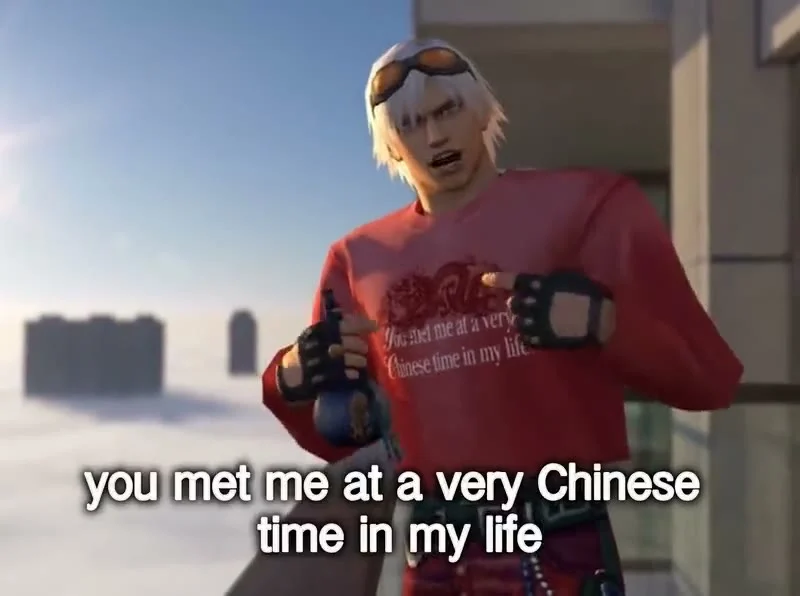
You can make a “You Met Me at a Very Chinese Time” AI video by choosing a short word for the subtitle, optionally adding one clear photo for the game-style hero, and checking the finished cutscene before posting. Trendai’s live form makes a 10-second vertical video; the photo is optional, and the word defaults to “Chinese” if you leave it blank.
The balcony is the setup, not the whole joke
The You Met Me at a Very Chinese Time template shows a source reel with a low-poly hero on a balcony above the clouds. The hero turns toward the camera, and the closing line lands in subtitles. Its page labels that reel as the original by @santeluca, not an example of what somebody else’s upload produced. The poster is a still from that source, too.
The line borrows its shape from the ending of Fight Club: “You met me at a very strange time in my life.” Here, “Chinese” can become your own one-to-three-word phase. That swap is the punchline. Keep the word instantly readable. “Startup” is quick; a whole diary entry will fight the subtitle and lose.
The template promises a new game-style scene rather than a cut of the source reel. Don’t frame yours as a scene from an actual game, a movie tie-in, or an official collab with the source creator. You’re making an independent, fictional AI edit.
One optional photo, plus a few separate choices
There is one photo slot on the live creation form: “Your photo (optional).” It asks for one person, chest or waist up, with a clear face turned toward the camera. If you leave the slot empty, the form says it creates an original hero instead. No face is required here.
A pet has its own path within the same slot. Choose the separate Look control’s “My pet” option and supply a clear dog or cat photo. That control is not another upload. You don’t need a second picture. The other visible Look options are “Your own clothes” and “Long red coat.” With a person’s photo, favor a frame where their hairline, shoulders and face aren’t chopped off; the cutscene needs space to make the head turn legible.
Don’t feed it a group selfie and hope the camera picks the right friend. Crop to one consenting adult, or use a solo image with a quiet background. For a pet, keep the ears and muzzle inside the crop. A simple costume works. Skip the complicated shirt logo; it competes with the subtitle beneath it.
Two text fields sit apart from that upload. Your word controls the blank in “you met me at a very ___ time in my life”; empty means “Chinese.” Where it plays optionally changes the setting; empty keeps the balcony above the clouds. If the phase is the gag, leave the balcony alone for the first attempt. New scenery costs viewers attention. Save it for a phase tied to a place.
Make the cutscene in the order the viewer reads it
- Pick the one-to-three-word phase first. Say the whole sentence aloud with your choice in it. If it needs an explanation before the subtitle appears, try a simpler word.
- Decide whether you want yourself, your pet or an invented hero on camera. Add the optional photo only when the face or pet is part of the joke. For a pet, select “My pet” in Look rather than treating the human look as a pet preset.
- Set Look and, if it earns its place, a short setting in “Where it plays.” Keep the default cloud balcony when the contrast between a huge game scene and a tiny personal problem is the joke.
- Check the current resolution and credit amount shown in your session, then generate. The live form shows 480p and 720p choices and labels the video 10 seconds, 9:16. Its charge can vary with the selected setting, so use the number on the button rather than an old screenshot.
The form also labels the template “with the trend’s sound.” That tells you the intended format, not what your particular download sounds like. The same page identifies the preview as the original source clip. Listen to your own export first. Then choose the caption.
Catch the small errors before they become the punchline
Watch once with the sound off. Can you read the entire sentence at phone size? AI-written letters sometimes slip, especially in a tiny subtitle. Check the word you typed, the word that appears, and the final “in my life.” If one letter changes the joke, try again with a shorter phrase rather than explaining the typo in the caption.
Then watch the motion. The reference turns toward camera; your result should still make sense as a small reveal, even if its pose differs. Look for a drifting face, a pet that changes shape between frames, or a coat detail that pulls attention away from the line. The source poster proves none of that. Check your own file.
Keep text clear of the platform’s caption and button area when you preview your post. This format is already vertical, so don’t crop aggressively to manufacture a second 9:16 edit. If the subtitle lands too low in your posting preview, adjust its placement in the editor only if you can do so without covering the face; otherwise reconsider the edit. Also listen for unexpected speech or music changes. Check rights to any audio you add separately, and follow the platform’s AI-content disclosure rules when your upload needs a label.
The earlier FNAF 2 Marionette scene guide deals with a different fictional game-horror setup, where recognizable franchise cues need especially careful framing. Here the hero can be original and the word does the heavy lifting. Keep the caption personal rather than pretending you played an unreleased game: “you met me at a very deadline time in my life” gives friends the setup without claiming real footage. If someone else supplied the photo, get their permission before uploading and posting the fictional portrayal.