How to Make an I Love The Smiths Elevator AI Video
Make an I Love The Smiths elevator scene AI video with the correct two-photo casting, scene checks and a clearly fictional posting angle.
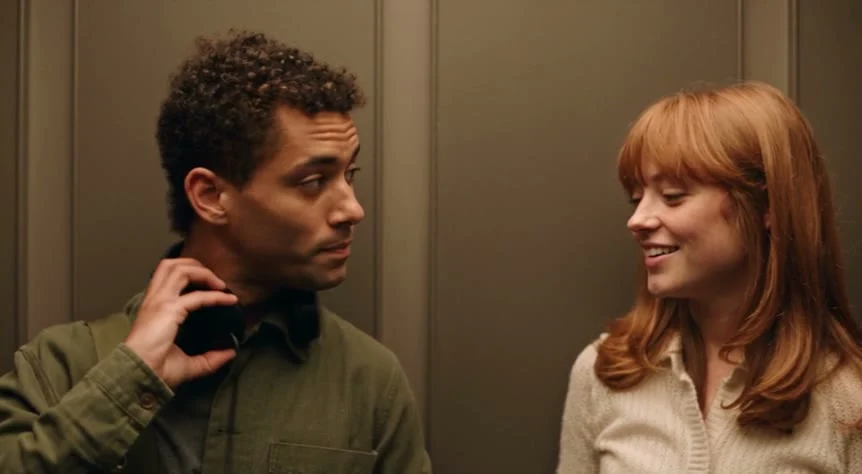
The I Love The Smiths elevator scene AI video puts two consenting adults into a fictional version of the meet-cute from (500) Days of Summer. Upload one clear photo for the headphone-wearing person on the left and another for the person who starts the conversation on the right; then check the final shot and audio before you post. This is a fan-style AI edit, not footage of you in the film.
The scene needs two different performances
The appeal is small: a stranger notices what somebody is listening to, and an elevator ride suddenly has a story. The I Love The Smiths elevator template describes a roughly 24-second, 16:9 scene with a headphone-wearing person on the left and a second person on the right who opens the conversation. The person on the right leaves first. That exit gives the last shot its point.
Don’t cast this like a dance duet. One person’s job is to listen and react; the other’s is to break the silence. If both photos are giant grins aimed straight at the camera, the quiet setup gets harder to believe. Try a calmer portrait for the left role and a photo with a little expression for the right. These are choices for the input pictures, not promises about exactly how the generated faces will move.
The page shows a source reference and labels a sample output separately. Its poster is another still. Those assets help you understand the composition, but none is a test of what your own two photos will produce. Check your own file rather than judging the result by the preview.
Cast the left and right slots on purpose
Both uploads are required on the live creation form. Photo 1 replaces the man on the left, the one with the headphones who remains alone at the end. Photo 2 replaces the woman on the right, who speaks first and exits. Those are the form’s role labels. A person of any gender can play either fictional part if they agree to the edit; the labels identify positions and actions, not a rule for who you may cast.
Start with one person per image. A clear face and upper body give the edit enough to work with across close shots; leave out the friend leaning into the edge of your selfie. Avoid heavy face filters and sunglasses. Keep some room around the head, especially in Photo 1, so the headphone gesture has somewhere to sit. For Photo 2, choose an expression that could plausibly lead into a conversation. This is casting, not a passport-photo contest.
Don’t upload a photo of a celebrity or someone you haven’t asked. The form asks you to confirm that you own the inputs or have clear permission and won’t impersonate people or copy voices. Get affirmative permission from both adults before you upload, and show them the edit before publication. A friend saying yes to a group selfie isn’t automatically saying yes to a fictional film scene.
Make the clip and inspect the handoff
- Open the Smiths elevator template and place your headphone-role portrait in Photo 1. Add the conversation-starter portrait in Photo 2. Don’t reverse them because a still seems to put one face closer to the camera.
- Check the displayed resolution and credit amount in your session. The live form currently offers 480p and 720p and lists a 24-second, 16:9 video with source audio. Choose the resolution you actually want before generating; the amount shown on the form is the one to review, rather than treating a quoted price as permanent.
- Watch your completed export all the way through. Pause on the first exchange, the exit and the solitary last shot. Does each face belong to the assigned person? Does hair or clothing jump across a cut? If the left-role person vanishes from the ending, the payoff has gone with them.
Then listen with headphones. The form says source audio, but a reference clip’s soundtrack and dialogue aren’t proof that every personalized export will retain them cleanly. Check for missing sound, speech that doesn’t line up or a clipped ending. Don’t claim the people really spoke those lines. If you add a track in a posting editor, use audio you have permission to publish; the film’s dialogue and original recording aren’t yours just because the template can reference them.
This is a wide two-person scene. A quick center-crop for a vertical feed could cut off the listener or the speaker, so preview the whole frame inside a vertical canvas before posting. A letterboxed edit that preserves both people beats a full-screen crop that deletes the joke. Keep the final solo shot visible too.
Post it as a fictional meet-cute
The best hook says what the audience is seeing without selling it as real footage. Try a caption along the lines of “We cast ourselves in that elevator conversation” and mark the clip as AI-generated wherever the platform asks. If you use a frame from the scene as the thumbnail, pick one where both characters fit; don’t make the exit look like a continuity error by promising a duet in every shot.
This is an independent fan-style recreation of a recognizable film moment, not an official (500) Days of Summer collaboration or a performance by The Smiths. Check rights to any source footage, music and dialogue before distributing or monetizing the edit. If you can’t clear those elements, don’t assume changing the faces clears the rest of the scene. The practical difference from the Hotel Lobby duet guide is the story beat: here the right-role person leaves, and the left-role person has to carry the reaction alone. Let that quiet last shot play before your caption or next cut.