Seedance 2.5 vs 2.0 for One-Photo Videos
Seedance 2.5 vs 2.0 for photo-to-video edits: compare references, clip length and a practical test before you cut a dance reveal for TikTok.
A still photo, a small shoulder turn, then a cut on the beat. For a short creator clip, Seedance 2.5 vs 2.0 comes down to how much control you need after the first good frame: 2.0 accepts several kinds of reference material, while 2.5 adds a longer single generation and more editing control. Neither version can rescue a muddy photo or an edit with no point of view.
The real difference for a one-photo clip
ByteDance describes Seedance 2.0 as a joint audio-video model that takes text, image, audio and video inputs. That matters if your reference isn’t just a face. Sound counts too. You might have a portrait and a short movement clip that shows the energy you want, or a sound you want the motion to follow. The model’s input options are useful; they aren’t a guarantee that the output will follow every tiny beat.
The Seedance 2.5 product page says it can generate up to 30 seconds in one go and can extend a generation twice. It also emphasizes precise reference control and editing. That’s a different brief from the typical six-second reveal. More runway helps when a creator wants a recognizable beginning, a change in the middle and a final held look. Three distinct beats. More runway can also give you more seconds to trim away. Sometimes a lot more.
This comparison is about the tools ByteDance says each model offers, not a blind quality test. I haven’t run identical prompts through both, and model access can depend on where you’re generating. Don’t let a clean demo clip convince you that your own source photo will behave the same way.
| If your edit needs… | Seedance 2.0 | Seedance 2.5 |
|---|---|---|
| Several reference types | Text, image, audio and video inputs are explicitly supported | Reference control is a focus, but check the interface you use for available inputs |
| A longer continuous scene | Check the length offered by your generation tool | ByteDance says up to 30 seconds in one generation, with two extensions available |
| A quick dance reveal | Start with a clear portrait and plan the cut in your editor | Use the extra length only if the movement earns it |
The 360° rotation room guide offers a concrete camera-movement test for a photo-led clip.
Start with the frame, not the model menu
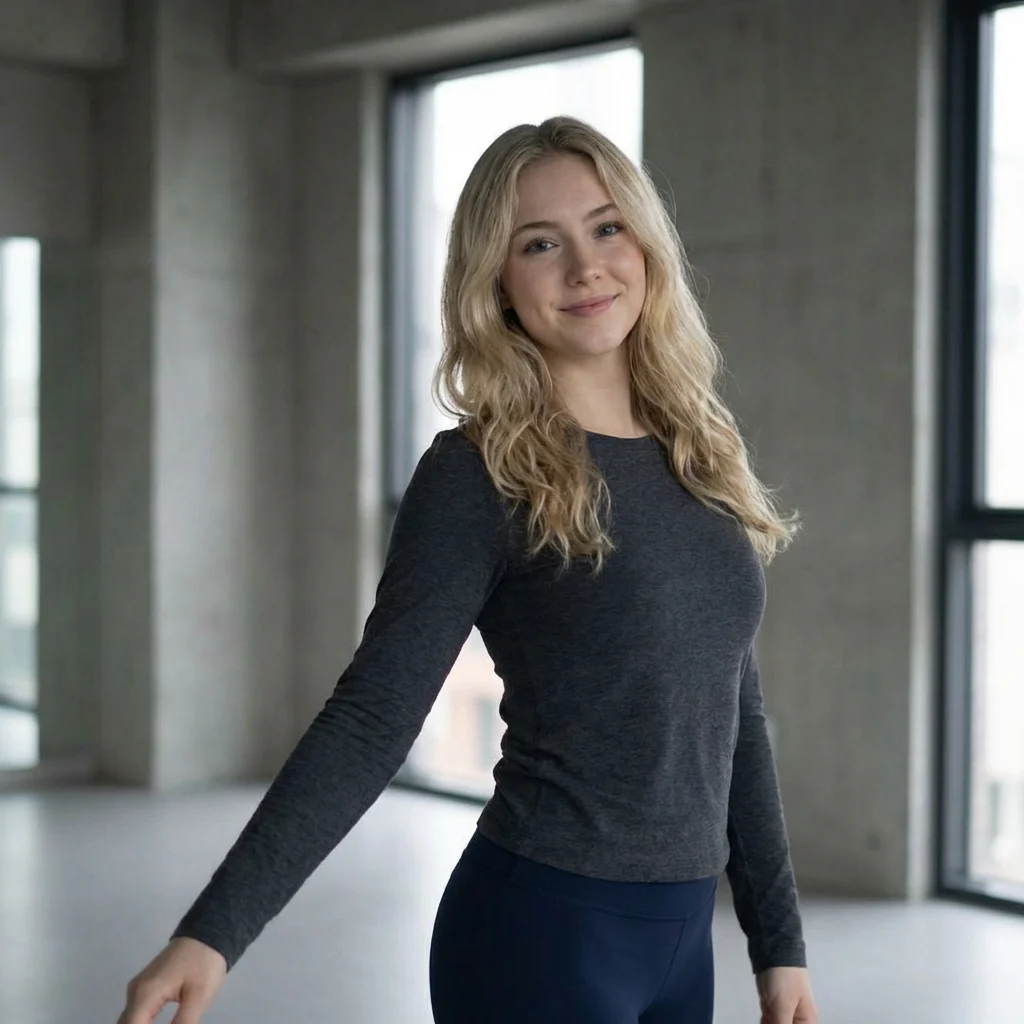
Take a look at the Dance Glow clip template. The poster is a person standing in a bright room, arm lowered to one side. Nothing flashy. That plain starting frame is exactly the sort of image you can build a reveal around: the viewer knows where the body is before the movement kicks in. It isn’t a substitute for testing a specific model, and the template page doesn’t promise which Seedance version runs behind it.
For a portrait-to-dance edit, pick a photo with the hands visible if the choreography will use them. Leave room around the elbows. If your first frame cuts a wrist at the edge, any generated arm swing has to invent what was missing. A neutral wall helps you see that failure fast; a crowded background gives stray shapes somewhere to hide. I would rather keep a slightly boring wall than watch a chair grow a second leg halfway through the clip.
Decide on one motion instruction before you render anything. Just one. “Turn toward camera and raise the right arm” is a shot. “Dance stylishly in a cinematic room with dynamic motion” is a mood board with no edit point. For short-form, the first instruction is easier to cut to music because you can see when the action begins and ends.
A fair side-by-side test you can actually edit
- Use the same source photo in each available model interface. Keep its crop and orientation unchanged. If one tool silently changes the frame, make a note of it before calling the models different.
- Give each version the same simple movement request: a small head turn, then one arm lift. If you have the same audio reference available in both interfaces, attach it; if not, omit it from both. Equal inputs first. No exceptions.
- Export the results and watch once without sound. Check the face at the turn, the fingers at the arm lift and the edges of the frame. Pause on the transition into motion, where a good thumbnail can suddenly become a bad video. Watch the hands.
- Put each clip against the same piece of music in your editor. Cut on the visible movement, not the first generated frame. Then watch at phone size. The version that survives that small-screen cut is the one to keep, even if the other looked prettier paused.
If you’re making a longer scene, rerun the comparison with a second action after the turn. This is where 2.5’s stated longer generation becomes relevant. Don’t ask both models for a whole choreography and then try to guess which single mistake caused the collapse. Build the shot in pieces you can judge.
Give the post a reason to exist
A model comparison is only useful if it changes the posted edit. Pretty stills do not count. For a fast reveal, open on the original still for a moment, let the motion answer it and trim out any dead lead-in. Keep the text overlay off the face. If the output invents a distracting hand gesture, cut before it arrives rather than explaining the glitch in your caption.
You can try the Dance Glow video as a starting point, or use Generate if you’re working from a different shot. Treat the posted video as your own edit: choose the frame, choose the sound from the platform’s available library and decide exactly where the last move stops. If the arm lift lands late, slip the audio or shorten the opening still. One frame can make the difference between a move that feels intentional and one that looks like it missed the cue.