Push Yourself Desert Canyon: Frame the Cliff Scene
Make a Push Yourself Desert Canyon AI video that reads as a story, from choosing a portrait to cropping the cliff scene and labeling the final post.
The Push Yourself Desert Canyon AI video puts your portrait into a dramatic red-rock canyon scene. Make it as a tiny story about facing a hard choice, not as proof that you stood near a cliff. Pick a clear photo, let the scene breathe, then cut the post so viewers understand the moment before they scroll.
Read the scene before you write the caption
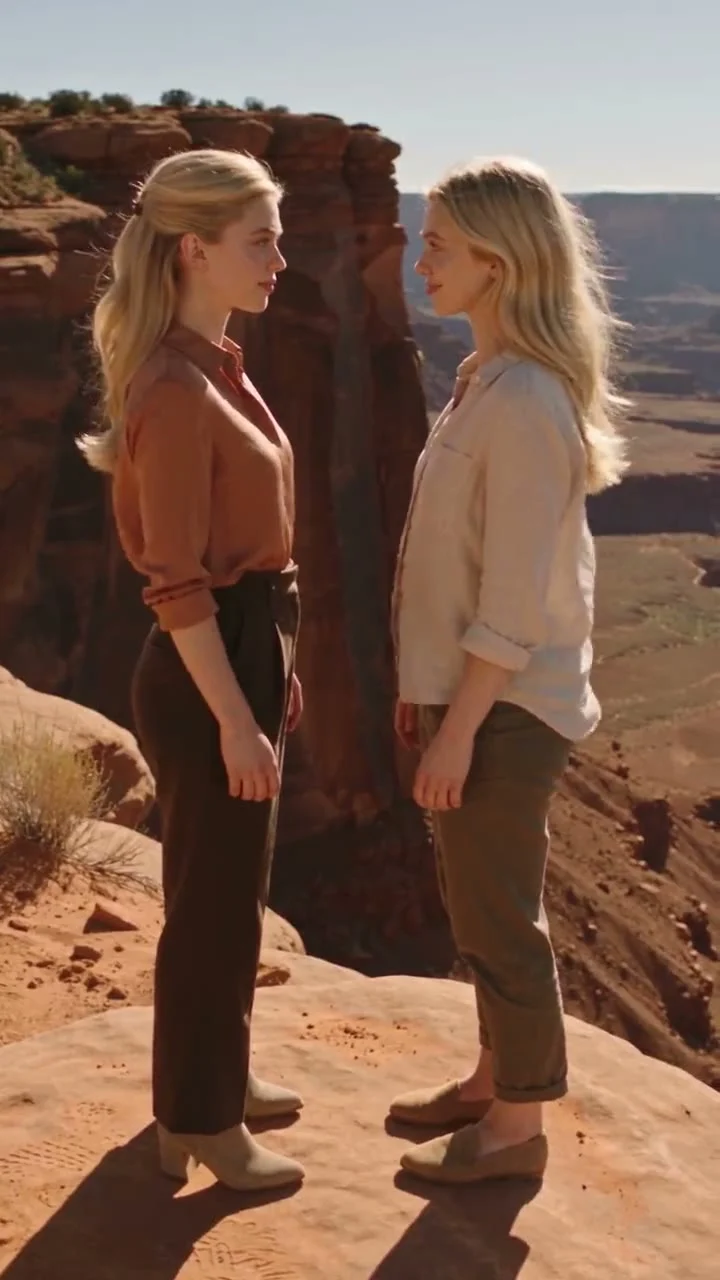
The Push Yourself: Desert Canyon template is an image-to-video effect: you upload a portrait and it builds a cinematic canyon sequence around the person. The owned poster shows two blonde women facing each other on a sunlit ledge, with red rock and a steep drop filling the background. It does not show someone leaping a gap. That distinction matters when you choose your opening line.
A good hook gives the face-off a reason to exist. Try a line about calling your future self, having one more hard conversation, or waiting for the other version of you to move first. The photo may show one person while the sample poster shows two; treat that poster as a clue to the mood, not a guarantee of identical characters or actions in your result. Watch the clip first. Do not write a caption promising a leap, a rescue, or a second character until you can see that moment in your own generated result.
Skip the fake survival story. An AI cliff scene is already tense enough without a caption claiming you shot it on location. If the output looks like a recognizable real place, avoid naming it as a place you visited. You can write fiction and still be straight with the audience.
Give one portrait a job
Choose a portrait with a visible face and clean edges around the hair. A busy group selfie asks the generator to guess which face is yours. A tight crop that cuts off the chin makes the face harder to read once the video moves. Use a photo you have the right to use, and get permission before uploading somebody else’s face.
Decide who the person is in this scene before you upload. Are they hesitating? Daring themselves to speak? Meeting a past version of themselves? That choice changes the caption, your first frame, and where you’ll place text. It also gives you a way to reject a take that looks cinematic but says nothing. The photo-to-video hooks guide covers the reveal problem more broadly; here, the canyon is the pressure, and the expression is the payoff.
If you’re choosing between a polished studio headshot and a candid portrait, inspect the output rather than assuming one will win. Look at the eyes, then the jawline. The face has to hold. A beautiful background doesn’t rescue a person whose eyes or jaw have shifted so much that even a friend would not recognize them. Don’t promise your audience an exact likeness until you’ve checked the clip yourself.
Cut for a phone screen, not a movie trailer
Start the post on the clearest human moment, not on empty scenery. Let the audience register the two people or the single figure against the drop before you place words over the frame. If your caption is “me, finally answering that message,” put it away from the faces. Keep the ledge visible enough to explain the stakes, but don’t let a dramatic rock wall swallow the person.
Here’s a simple edit you can actually make:
- Watch the generated video once with the sound off. Mark the first frame where you can identify the person and the canyon together.
- Trim dead time before that frame. Keep any pause in which the person seems to make a decision; that pause is your plot.
- Add one short line of text that changes how the face-off reads. “The version of me that stopped waiting” does more work than “push yourself.”
- Check the crop in a vertical preview. Keep faces clear of app overlays, and replay the final second before publishing.
The poster has a bright sky above the characters and a deep canyon below them. Those two empty areas might seem perfect for text, but a platform interface can cover the lower part of a vertical video. Make a test draft. Open it on your phone. If the line vanishes under the caption or controls, move it. Don’t spend twenty minutes perfecting an unreadable punchline.
Keep the danger fictional and say so
A generated ledge is a visual device, not a shot list. Grand Canyon National Park’s visitor safety guidance says to stay on designated walkways and at least six feet from the rim; it also says not to run, jump, or perform stunts near the edge. You don’t need to imitate the poster for a real-world before-and-after. Film your live-action intro somewhere safe, then cut to the AI scene.
For YouTube Shorts, the platform’s GenAI disclosure rules require creators to disclose a realistic scene that did not actually occur. Use its AI-use setting when that applies; for other platforms, check the current labeling controls before you post. A plain caption like “AI scene from my photo” also stops the cliff from being mistaken for a travel receipt.
If you’re using the scene to talk about a real challenge, keep the real part specific. “I finally sent the application” tells us more than “I conquered my fears.” Let the canyon carry the exaggeration. You supply the actual sentence.