Pickup Truck Jump Video: Put Your Car in the Air
Make the pickup truck jump video with two photos. Learn which portrait and vehicle angles work, how the 12-second clip is built, and how to post it.
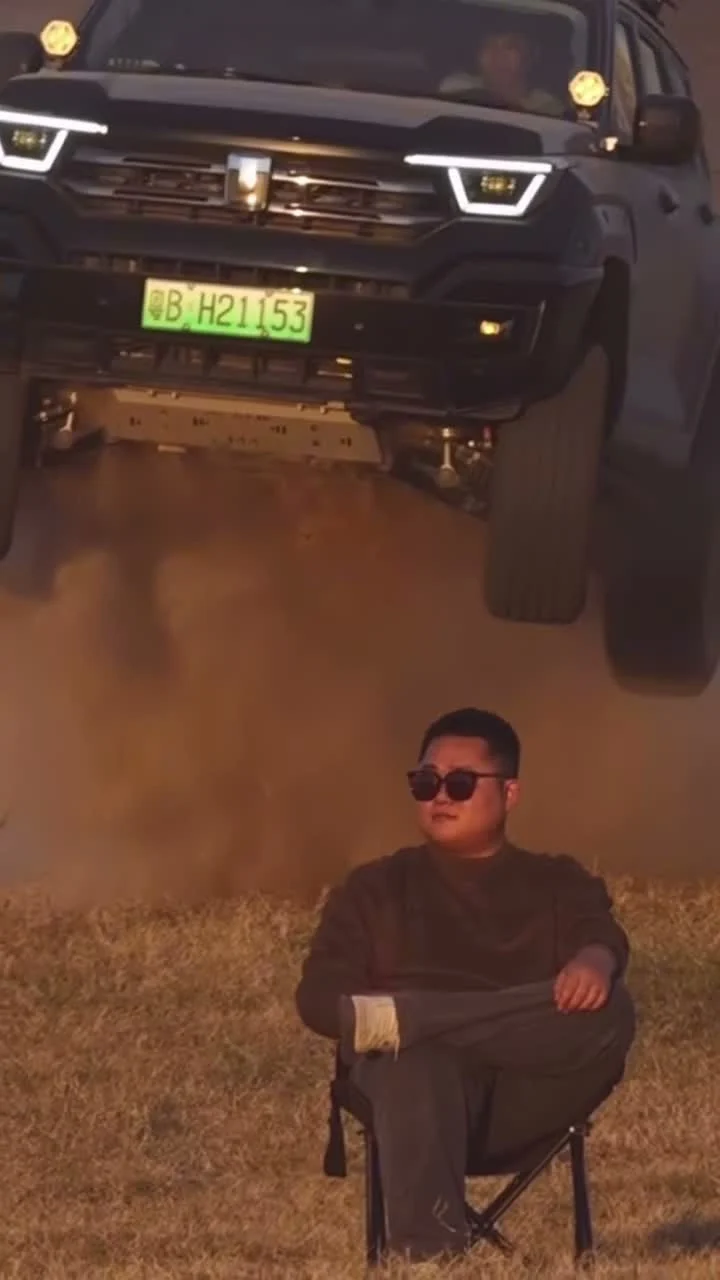
A man sits in a camp chair as a pickup truck flies behind him. The joke is that he barely reacts. To make the pickup truck jump video with yourself in the chair and your own vehicle in the air, use two clear photos in Trendai’s car jump template: your portrait first, then a full view of the vehicle.
Why the calm face sells the jump
The truck is the loud part. The person in front is the punchline. In the source clip on Trendai’s pickup truck jump page, a man wearing dark sunglasses stays seated on dusty ground while the vehicle goes airborne behind him. The scene lands because your eye has two things to watch at once: the truck’s movement and a face that refuses to make a big deal of it.
That gives you a better edit plan than simply choosing the most dramatic truck photo you own. Think about what your seated character will look like on a small phone screen. A single, recognizable face gives the viewer someone to check back on when the truck leaves the ground. If that face is hidden under a cap brim or cropped at the jaw, the reaction gag loses half its point.
The template page describes a clip of about 12 seconds in a vertical 9:16 frame. You aren’t filming an actual jump or building it from random driving footage. The reference video supplies the chair, dusty setting, movement, timing and sound; your images supply the person and vehicle. Keep that distinction clear if you share the result. Nobody needs to think you launched your daily driver over a campsite.
The airplane wing stunt guide tackles a similar fake-stunt reveal, but it casts one person rather than a person and a truck.
Pick photos that have two different jobs
Photo one is for identity. Use one person facing the camera with enough light on their face to recognize them. The template keeps the dark sunglasses from the source look, so eyes don’t have to carry the shot, but a clean view of the face still matters. A group selfie is a gamble: it gives the generator more than one person to choose from.
Photo two is for the vehicle’s shape. Show the whole truck, car or SUV, ideally from the front or a front three-quarter angle, without another vehicle blocking it. A close crop of a grille might look cool as a photo, but it makes a poor reference for a vehicle that has to appear in midair. If the roof or wheels are missing, the video has to guess what they look like.
Use a vehicle photo you have permission to upload. The same goes for anyone else’s face. If you’re making this for a friend, ask before putting them in the chair. The joke still works when both photos belong to you; it may even work better if people recognize the car.
Build the edit in the right order
- Open the pickup truck jump video template. Watch the source preview once before uploading. Notice how much of the chair and vehicle you can see, rather than expecting a tight portrait close-up.
- Add the person’s photo to Image 1. Use a frame with one face and a simple enough background that the person doesn’t disappear into it.
- Add the vehicle photo to Image 2. Check that its body, roof and wheels are visible before moving on. The template accepts a car or SUV as well as a pickup.
- Choose your resolution and generate. The page offers 480p and 720p; it displays the current credit price before you start. If the photos need testing, start with the lower-resolution option, then decide if a sharper export is worth another render.
- Download the MP4 and watch the whole thing on your phone. Check the seated face, the vehicle silhouette during the jump and the landing. A nice opening frame can’t rescue a strange-looking car halfway through.
Don’t swap the uploads to see what happens. Their order is the casting instruction: person first, vehicle second. If a render misses, change the photo causing the problem before you change everything else. A cleaner vehicle angle can make more sense than another round with the same heavily cropped picture.
Post the impossible jump without pretending it happened
The opening already has a hook: a huge truck over a person who acts like it’s Tuesday. Let that visual arrive early. Avoid covering the seated face with a caption box. If you add on-screen text, put it where it won’t hide the car at the peak of the jump, and read it at phone size before posting.
For the caption, name the contrast rather than explaining the software. Something as plain as “Me pretending I didn’t hear that behind me” fits the chair shot. If your own car is in the edit, that reveal may be the better caption angle. Don’t claim the stunt was filmed or performed in real life. The template uses a source clip to produce a personalized AI video, not proof of a real jump.
Trendai lists this template as a short vertical video. That frame suits Shorts too: YouTube’s upload instructions accept a square or vertical file up to three minutes as a Short. The more important platform check is disclosure. YouTube’s altered-content policy asks creators to disclose realistic AI-generated scenes that didn’t happen; a believable vehicle flying over a seated person is exactly the sort of edit you should label. Check the disclosure controls on the platform where you post.
If the vehicle’s shape looks wrong in the export, go back to Image 2 and give it a fuller, cleaner view. Keep the same portrait while you test. You’ll know which photo fixed the shot.