How to Make a Phone on the Train AI Video
Make a Phone on the Train AI video from one photo. Follow the Paris metro platform performance, moving train camera and Eiffel Tower ending.
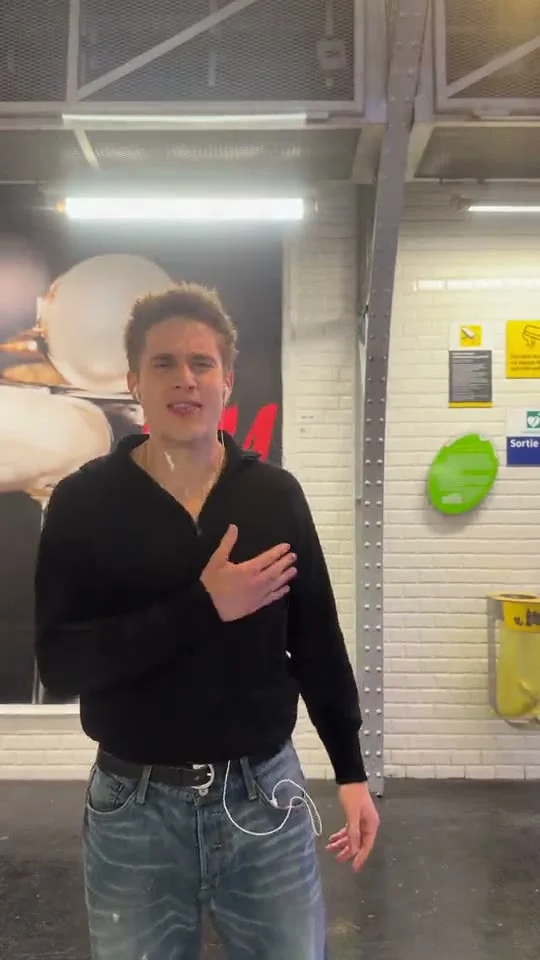
A person performs on a Paris metro platform, leaves a phone filming from a train window, then runs as the train pulls away. The view carries on toward the Eiffel Tower. To make the Phone on the Train AI video, upload one clear photo of the person you want in the lead role. The template uses a 30-second vertical 9:16 reference, so you don’t need to film beside a train.
The hook is the handoff from platform to window camera. First, a close-up. Then the train creates the moving shot. Don’t confuse this with a generic Paris travel montage: the phone viewpoint and the run are what make the sequence recognizable.
Pick a photo that survives the switch in viewpoint
The live creation form has one required photo slot, labeled “Your photo.” It asks for a consenting person with a sharp face and a clear outfit, ideally visible from the waist up or in a full-body shot. No second actor to cast. No driving video to upload. The reference footage supplies the metro platform, train movement and camera path; your photo identifies the performer.
A face-only selfie might look fine in the opening close-up, but the run asks the generator to infer more of the outfit. Want the clothes to match? Choose a full-body image with visible trousers and shoes. Keep the face large enough to read. Tiny faces buried in a group picture give the edit little to work with, especially when the train starts moving. Skip heavy filters. Don’t change the person’s features before the model has even seen them.
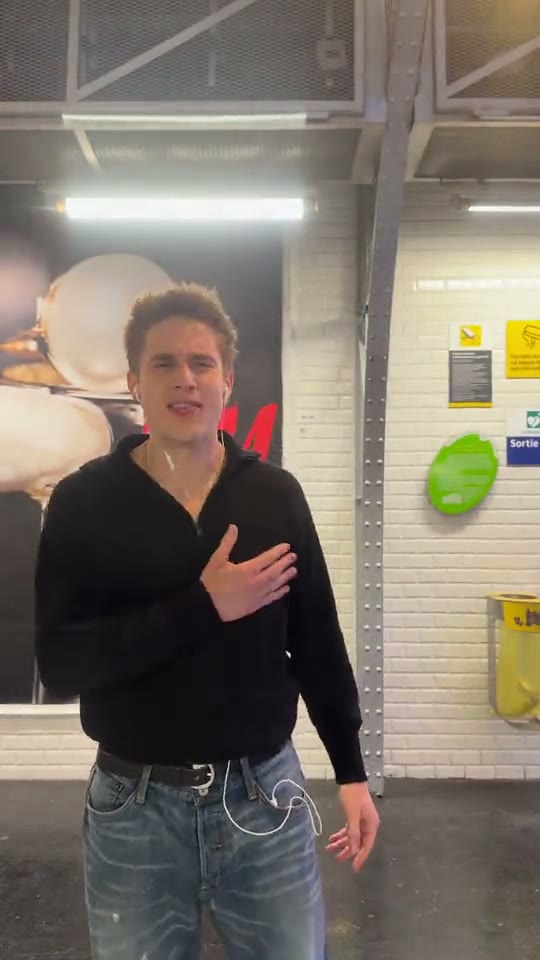
The source poster shows a performer in a dark top on a tiled station platform. That’s the original reference, not a promise that the final video will keep that outfit. The template page says the supplied photo guides appearance, including clothes. It also labels the preview as source footage, not a personalized result. Treat it that way.
The Street Style Walk guide is another moving city edit, but this train scene relies on a fixed phone viewpoint.
Make the Phone on the Train video
- Open the Phone on the Train template and upload one photo of yourself or someone who agreed to be featured. Use a sharp image where both face and outfit are legible.
- Select 480p or 720p from the resolution menu, then review the credit amount shown on the form before you submit. The 30-second length and portrait 9:16 format are fixed on this page.
- Generate the video and watch the entire result before downloading the MP4. The source preview won’t show how your face handles the train-window angle or the running shot.
You do not need to stage this on a real platform. Please don’t tape a phone to a train or run near a departing one to imitate the clip. This is precisely the kind of risky setup the built-in footage avoids. Keep the performance fictional if you post it as an AI edit.
Review the run and the Eiffel Tower reveal
Don’t stop at the first frame. The template description traces a platform close-up, a phone filming from the train window and a run alongside the departing train before the closing view toward the Eiffel Tower. One photo has to carry all of it. Check the face in the close-up, then check whether the outfit still resembles your reference during the run. Look at the hands around the phone moment, too. Fast motion can make them look odd.
If the identity drifts after the train moves, try a brighter source photo with the face less obstructed. A full-body picture can help when clothing changes between the platform shot and the run, while a waist-up shot may give the opening face more pixels. That’s a tradeoff in your input, not a different person to upload. Make one change at a time so you can tell what improved.
The page mentions original audio and soundtrack restoration, but listen to the exported video before writing a caption that depends on a particular sound. Listen first. Source preview audio is not evidence that a specific export played correctly for you. Check whether the audio fits your chosen platform and whether you have the rights to reuse any music when posting.
Let the camera change do the posting work
For a short teaser, begin with the phone’s viewpoint switching from the platform to the moving train, then leave the Eiffel Tower shot for the full version. If you share the whole 30 seconds, avoid placing a giant title over the window view: it hides the one perspective shift that separates this edit from every ordinary travel video. A simple caption like “Left my phone on the train?” sets up the joke without claiming you really did.
Ask the person in the photo before publishing, especially if the running shot could be mistaken for footage of an unsafe stunt. Label the video as AI-made where your platform calls for it. And if you crop it for a feed, check the station close-up and the final tower view after export; both need room in the vertical frame.