Knight Cat AI Video: Cast the Kitten and Protector
Make a Knight Cat AI video by casting the human protector first and your cat second, while preserving the sword reveal in its wide 4:3 frame.
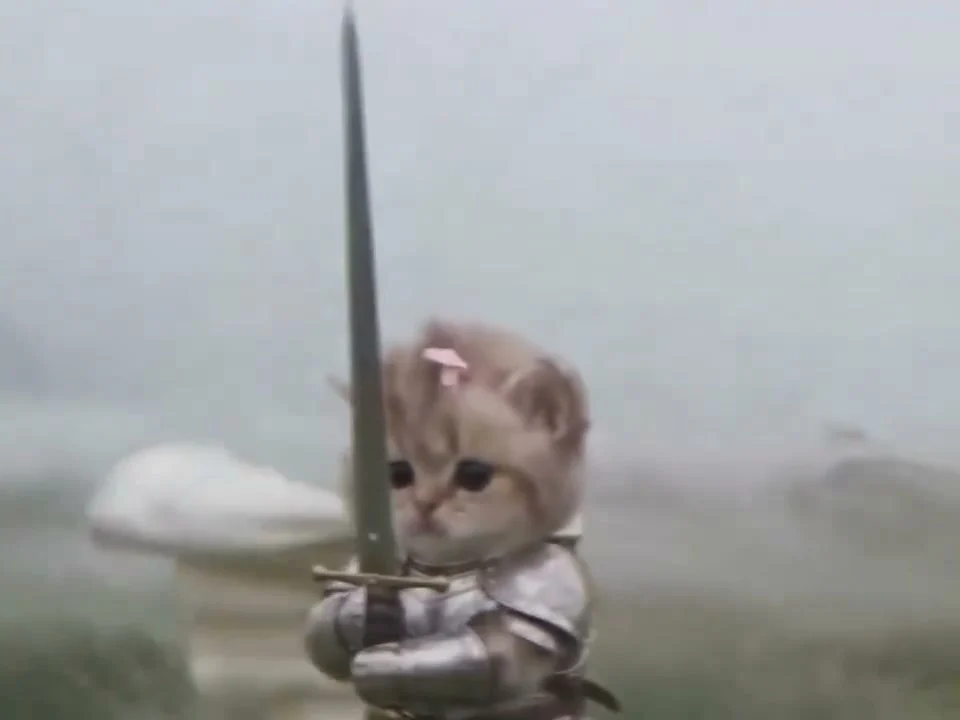
A Knight Cat AI video starts with a tiny armored kitten holding a sword, then pulls back to reveal a huge human protector beside it. On Trendai’s Knight Cat template, your required photo casts the protector. A second photo can cast your cat as the knight. The reveal only lands if the kitten stays the star long enough to earn that dramatic bodyguard.
The tiny knight owns the opening shot
The source reference begins close to the kitten in silver armor, a pale cape and a pink bow. Its sword looks absurdly big for such a small animal. The camera then backs away to show a human warrior standing next to it on a misty, rocky moor. That’s the joke. Small knight, big backup. A caption that gives away the protector before the pullback takes some fun out of the reveal.
The poster shows the kitten holding the sword, rather than the human. Use that visual hierarchy when you add words. "My cat when someone rings the doorbell" gives the first shot a reason to exist; the guardian reveal can do the rest. You don’t need to invent a battle or claim your pet did anything dangerous. It’s fantasy footage with your chosen likenesses, and it should be framed that way.
The form specifies around 10 seconds with 4:3 horizontal framing and source audio requested. That’s different from the usual vertical pet post. Because the opening sword reaches high above the kitten while the later pullback needs room beside it for a full-size guardian, a tight phone-screen crop can change the joke before viewers even see the reveal. Check the whole frame. For a vertical platform layout, placing the uncropped video inside a taller canvas with intentional background space is safer than blindly zooming in.
Two upload roles, not a face swap between species
The live upload form calls Photo 1 the required human protector and Photo 2 the optional armored kitten. Start with one photo of a person with a clear face. That identity belongs on the large warrior, not the cat. The costume and moor come from the reference, so a portrait in everyday clothes is fine. Avoid sunglasses and shots where the person’s face is turned away.
If you want your own cat, put one cat in the second photo. Show its face and distinctive markings so you’ll have something recognizable to check when it appears in armor. Three cats lounging together? That’s needlessly ambiguous. No cat photo? The source kitten remains. You still need the person photo; the optional slot can’t stand in for the required protector.
This is different from the Dancing Pets trio, where each upload casts an animal in a dance position. Here, the first upload is a human and the extra upload is a single cat. Different cast entirely. Treating those workflows as the same will put the wrong subject in the wrong role.
Build and review the reveal
- Open the Knight Cat AI video template and upload a permitted portrait of the human guardian to Photo 1.
- Upload a clear image of your cat to Photo 2 if you want the original kitten replaced. Otherwise leave Photo 2 blank. Check the thumbnails before generating, especially if both files came from your camera roll.
- Select an available resolution, generate, then play the entire clip. Check the close view and the pullback separately; fine details are harder to spot once the kitten becomes small on screen.
Look at the cat’s markings in the opening, then see if they hold up after the camera moves back, because the small face in the wide shot has to carry enough of those distinctive details to read as the same pet rather than as a generic new kitten under the armor. Pause on the paws touching the oversized hilt and on the sword’s outline. Thin blades can bend or flicker; shiny armor can shimmer. The guardian’s face should remain recognizable after the cut to the wider shot. If a result misses the mark, a sharper photo with fewer distractions may help, but don’t tell viewers you can guarantee a perfect pet likeness.
The preview on the template page is the motion reference, not a demonstration of your finished upload. That’s a big distinction. There is no proof of a particular result until you generate and inspect yours. Keep that clear in the caption if you show the source clip as a before image.
Package the joke without losing the frame
For a pet-account post, make the kitten’s imagined job the hook: "Security has arrived" fits the armor and leaves room for the giant bodyguard to appear. A second version could turn the guardian into the cat’s unpaid assistant. Keep the wording short enough to read before the camera reveals the second character. If you put a long sentence directly over the little face, the audience loses the very detail that sells the bit.
Try an edit with the soundtrack intact before laying another song over it; the template page says source audio is requested. Check any platform’s music and AI-content labeling controls before posting, especially if you add a different track. Don’t claim the cat actually carried a blade. For this fantasy setup, the safest caption lets the image be obviously playful while any disclosure stays clear.
For a thumbnail on a vertical feed, avoid cropping all the way into the sword. Preserve the cat’s face and enough empty moor for text. For the finished video, preserve the full 4:3 source in your edit. The payoff needs both sizes in one shot: a very small knight and a ridiculously large backup plan.