Hotel Lobby Trend: Make the Two-Person AI Video
The Hotel Lobby trend swaps two people into Quavo and Takeoff’s orange COLORS performance; here’s how to set up the photos and post the edit.
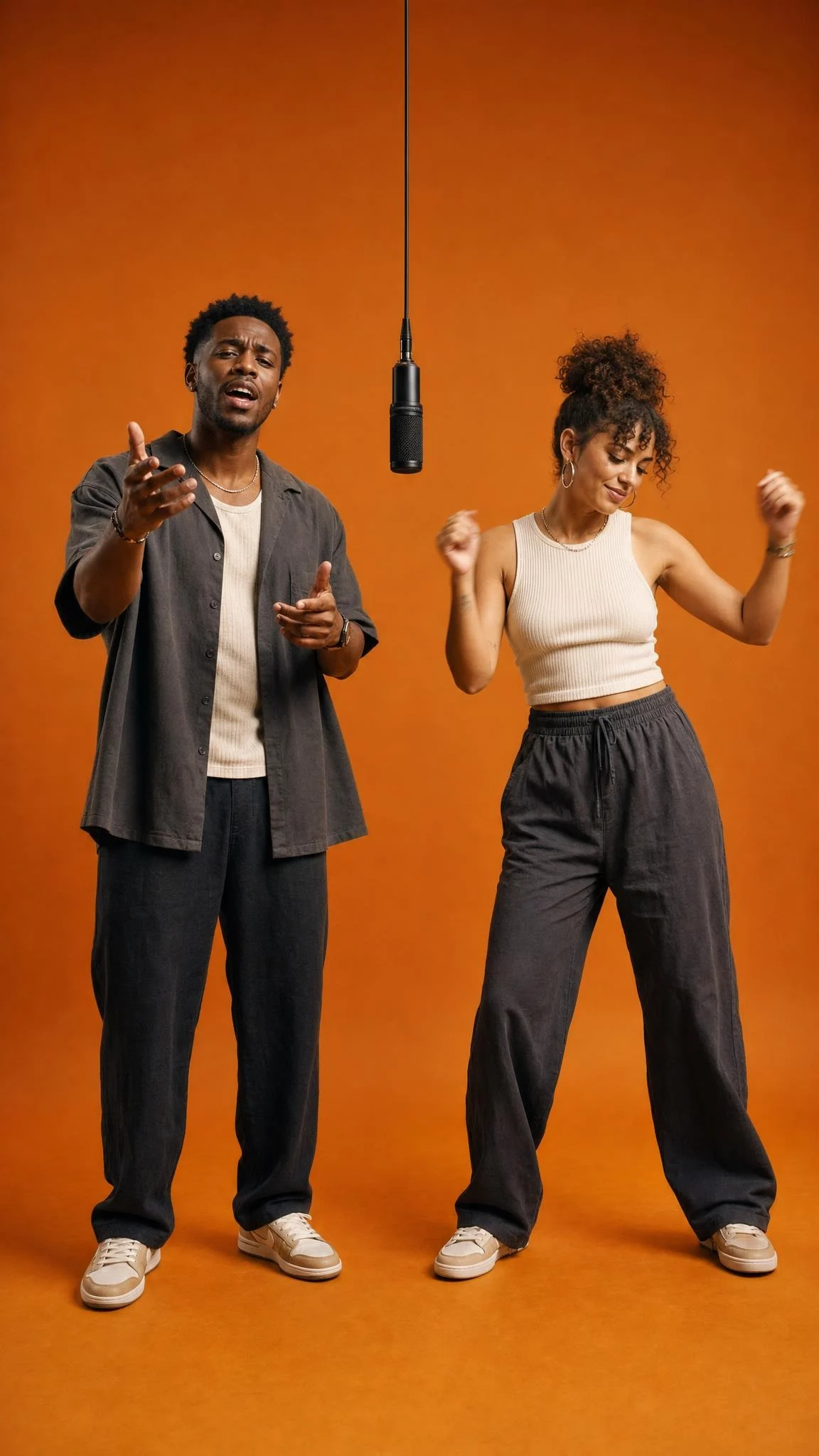
The Hotel Lobby trend swaps two people into Quavo and Takeoff’s orange COLORS performance: one at the hanging mic, one beside it. To make an AI version, give each performer a separate photo input, assign the left and right spots, then check the finished clip before you post. It’s the orange-room performance, not a hotel scene.
The orange room is the joke
The wall is bright orange. The mic hangs dead center. Both performers move in and out of that frame, so you recognize the setup before you recognize the faces. Swap in your roommate and your brother, and people get the bit without a paragraph of caption text.
Don’t use the song’s official narrative video as your visual reference. Different video, different look. If you’re searching for examples, look for the mic and that flat orange backdrop. Otherwise you may spend ten minutes wondering why your clip has no hotel lobby in it. Fair question, honestly.
Apple Music credits “HOTEL LOBBY (Unc & Phew)” to Quavo and Takeoff and dates the track to May 2022. The COLORS performance followed in June 2022. You’ll see people call it a Migos trend because the two artists were members, but don’t credit this recording to all three. The AI edits circulating in September 2026 reuse an older performance; there’s no sound basis for naming one person who started the swap.
For another two-person performance where each upload has a distinct role, see the Raindance casting guide.
Set up the two performers
The Hotel Lobby swap template has separate Left performer and Right performer inputs. It calls each input a Character Sheet. That’s one sheet per person, not one photo of the pair together. Its guidance recommends a front portrait plus front and back full-body views of the same subject on each sheet. If you’ve only got one photo per person, you can try those instead. Watch the wide shots closely. Especially the turns.
- Pick the pairing first. Decide who’s at the mic and who’s on the right. Ask before uploading a friend’s face; a surprise tag isn’t consent to make an AI clip of them.
- Gather the references. Use clear, unfiltered photos where you can actually see each face. If you’re making sheets, keep all views of one person together. Don’t put both people into a group selfie and hope the tool sorts it out.
- Upload to the Hotel Lobby generator. Put the mic-side person in Left performer and the other in Right performer. Switch the uploads if the blocking feels wrong.
- Pick an export. The page offers 15 or 30 seconds and 480p or 720p. Start with 15 seconds when the pairing is the punchline. Check the displayed cost before generating; use Trendai’s pricing page for current terms rather than trusting an old screenshot.
- Watch the entire result. Pause where either person turns or crosses the mic. Look at the faces, hands and outfits, and make sure the people stayed in their assigned spots. If one face changes halfway through, fix its reference image before trying another export.
That last pass matters more than the caption. No contest. A stranger won’t know which person you meant to put on the right, but your friend absolutely will.
Photos that survive the wide shot
A sharp face crop is useful, but this isn’t a talking-head video. There are wide moments and bodies in motion. If the photo cuts off everything below the chin, the tool has less to go on for the outfit and body. A full-body view helps. No sunglasses, please. You want the face visible.
Keep a front portrait and body views on the same sheet consistent. Same person. Not three versions of their look from different years. Soft, even light makes it easier for you to judge the result, while a deep shadow across one side of the face can hide a bad match until the performer moves.
My pick: don’t crop the final video to fill the phone screen. The template describes a 16:9 MP4, and that mic divides two people across the frame. Force it into 9:16 and one half of the joke can vanish. Fit the whole image inside a vertical canvas instead, with a short label in the spare space. Check it on your phone, not just in the editing window.
Post the edit without making people guess
Lead with the names or relationship: “Me and my roommate got the COLORS mic.” One line is plenty. Stop there. Label it as an AI edit so nobody mistakes it for a real performance, especially if you’re using somebody else’s likeness with permission. If the same person plays both roles, make the caption part of that joke, then check the overlap by the mic frame by frame.
Listen before you add a platform sound. The template says its output includes audio; adding the same track again can leave you with two copies slightly out of sync. Music availability depends on your account and where you live. Check the options at upload and use a version you’re allowed to post. A template doesn’t clear the song for every use.
If your first cut takes too long to show the swapped duo, try the shorter version. Compare where viewers stop watching in your own analytics rather than trusting somebody’s magic posting hour. TikTok’s explanation of For You recommendations names captions and sounds among video-information signals. Viewer interactions matter too. None of that promises reach; it does give you a reason to make the pairing legible from frame one. For a different setup when you’ve only got one usable photo, browse the Trendai trends gallery.
FAQ
Do I need two photos or two character sheets?
You need two inputs, one for each spot. The template calls them Character Sheets and recommends a front portrait and front and back body views for each person; one clear photo per person is worth trying if that’s what you have.
Can the same person play both roles?
You can supply the same person’s images for left and right if you have permission. Pause where the performers overlap near the mic to check that the two versions don’t merge.