How to Make an AI Flying Car Video
How to make an AI Flying Car video from one car photo: pick the right angle, check the nine-second highway flight, and post it as fiction.
To make an AI Flying Car video, upload one clear photo of your whole car to Trendai’s Flying Car template, then generate and review the vertical clip. The scene puts your car in highway traffic before it rises above the stopped vehicles and lands farther down the road. It’s a fictional stunt, not dashcam footage.
The traffic jam is the setup
The payoff needs a boring first beat. On the Flying Car template page, the planned scene starts behind a car stuck in golden-hour highway traffic. White vapor appears underneath; the car lifts with its wheels still attached, moves above the jam, then lands on an open stretch and drives away. Keep the wheels. That progression matters more than a spectacular freeze frame of a car in the sky. If the viewer can’t tell what the car escaped, the flight is just another weird road shot.
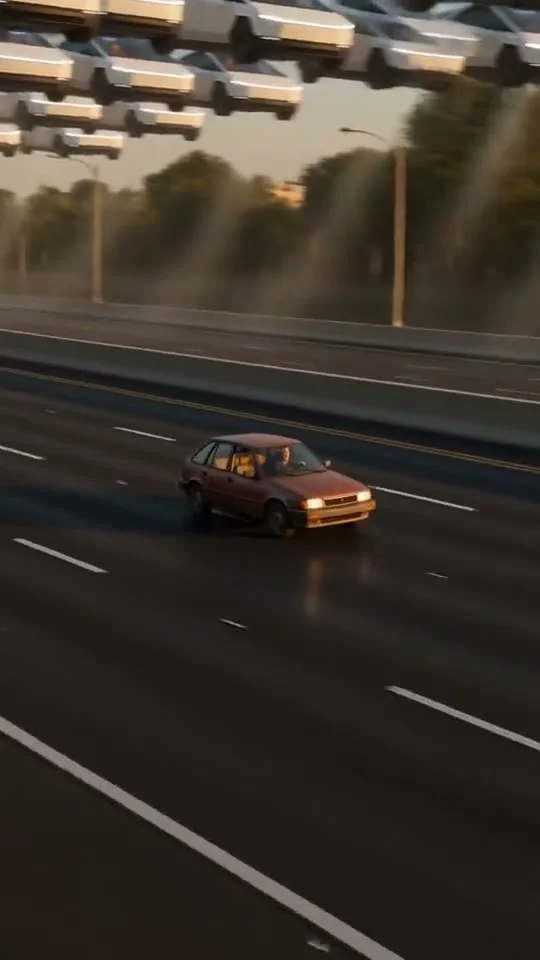
The poster is a reference still, not an example of your finished video. It shows a reddish small car on a broad road while several pale cars appear suspended across the top of the frame. That’s a different composition from the template’s stated single-car takeoff over stopped traffic. Treat the poster and source clip as mood and story references, not evidence that your uploaded vehicle will look exactly like either one.
This isn’t the same joke as our pickup truck jump guide, where one upload casts a seated person and another casts the airborne vehicle. Flying Car asks for one car photo, with no portrait slot. One slot. One car. Its hook is getting past traffic, not watching somebody sit calmly through an airborne truck stunt.
Choose a car photo that can survive the lift
The live upload field is labeled Your car and marked required. It asks for the whole vehicle, preferably seen from behind and to one side, with the body, wheels and lights visible. That angle fits a scene viewed from the following car. Don’t crop off a rear wheel to make the badge bigger; the lift depends on the vehicle reading as a complete object in motion.
A bright, clean shot gives the vehicle shape a fighting chance when it moves into another setting. Parked is fine. Keep people and neighboring cars from overlapping its outline, and avoid a night shot where the black tires vanish into a black road. Tires need contrast. If you’re using a distinctive paint job or wheels, keep those details visible without expecting every badge or plate character to stay identical after generation. The template itself warns that exact likeness and believable physics are targets, not guarantees.
Upload a photo you own or have permission to use. A friend’s car can be the star if they’re comfortable with it, but don’t present the finished stunt as something they actually drove. Better caption: "My car found a shortcut through rush hour (AI edit)." Nobody needs a fake traffic report.
Make the Flying Car clip
- Open the AI Flying Car creation page and watch the labeled Source preview for the motion idea. It’s a creative reference clip, not a render made from your image.
- Upload your car photo in the required Your car slot. The live form accepts JPG, PNG or WEBP and currently shows a 50 MB maximum. A paragraph lower on the page says 10 MB instead; follow the upload control if those numbers still disagree when you visit.
- Check the on-page generation details before submitting. The form displays a 9-second, 9:16, 720p result and says the template runs in two steps: building the traffic scene with your car, then animating its flight. There isn’t a driver-photo slot, a text prompt requirement or a visible duration or format selector on this form.
- Generate the clip, then check your Library for the result. Review the opening traffic shot, the wheels during the rise, the car’s silhouette in the air and the landing before you download or post it. If a plate or badge matters to the story, inspect it frame by frame.
The page’s source reference is labeled 8 seconds; the creation form says the generated video is 9 seconds. Those are different assets. Nor is the poster a sample output from the single car photo you’ll provide. Check the landing. Judge your export on its own frames rather than assuming the preview’s pixels or soundtrack will be copied into it.
Frame the post around the impossible shortcut
A vertical 9:16 clip is already built for a phone screen. Give the first traffic beat room to read; avoid stacking a giant caption directly over the vehicle before it lifts. A short line such as "when the commute has had enough" can sit above the road, then get out of the way for the flight. The stillness before takeoff is the setup, so don’t cut straight to midair just because it looks flashier in a thumbnail.
Watch the export with sound on and off. The page says its video model adds synchronized sound, while generic source-preview copy elsewhere says reference audio is kept. Neither statement proves what your particular downloaded file contains. Listen to the actual file before you add music; if you use a track in a posting app, choose audio you have permission to use there. Don’t assume a source clip gives you rights to its soundtrack.
Keep the fiction obvious in the caption, especially if the car resembles a real vehicle in a familiar location. The goal is a visual joke about traffic, not a claimed incident. When you pick a cover frame from your result, choose the moment with both road and car visible so the viewer can read the impossible shortcut without needing a paragraph of explanation.