How to Make a Dance With Santa AI Video
Make a Dance With Santa AI video from one photo: choose the guest portrait, check both dance moments and add licensed music after reviewing the export.
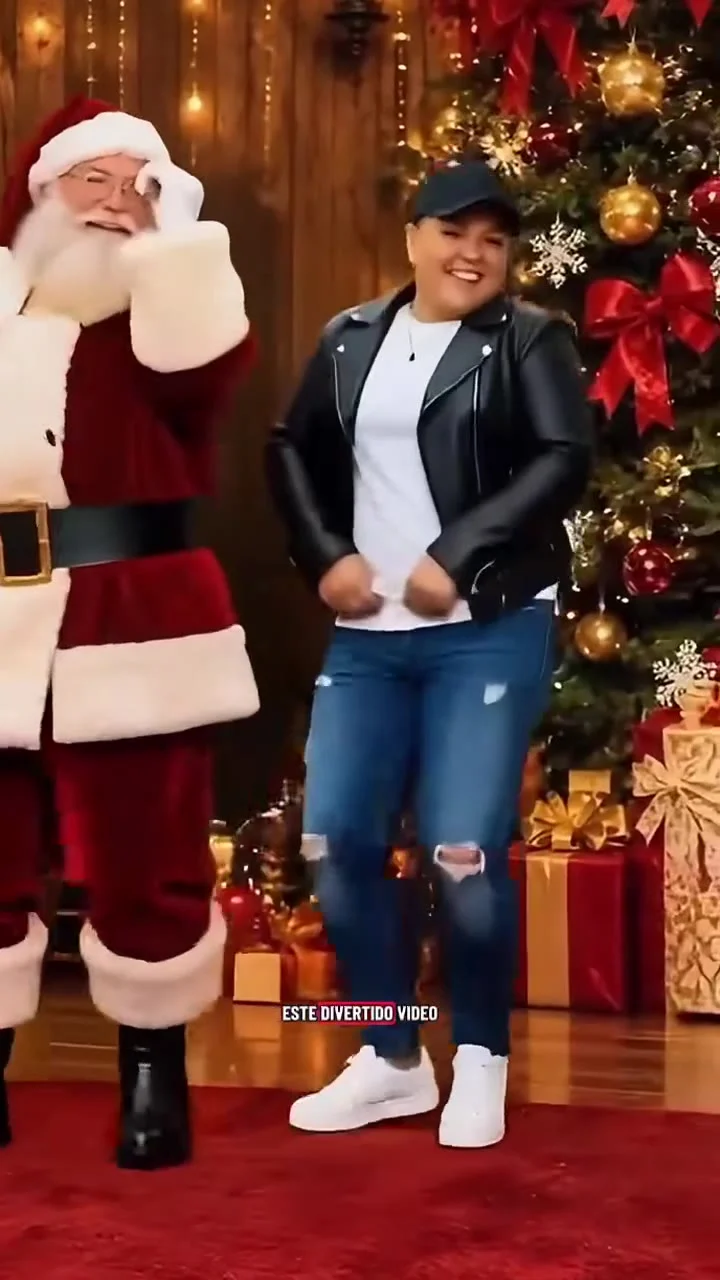
To make a Dance With Santa AI video, upload one clear photo of the person who will dance beside Santa, then generate the template’s seven-second vertical clip. The guest changes across two dance moments; Santa stays in the scene. Treat it as a playful Christmas edit, and check the finished video before you add music or post it.
The joke is being dropped into Santa’s studio
The Dance With Santa template starts with a dressed-up holiday set: Santa beside a guest, a decorated tree, wrapped gifts and a red carpet. It isn’t a montage of your own Christmas photos. The trick is that you appear as the guest in a scene whose movement and staging already exist. The reveal needs your face. Fast.
The live form calls this an image-to-video template with one required photo, a 7-second length and vertical 9:16 framing. Its upload field says “Your photo: the one dancing with Santa.” That’s your only upload. Santa needs no upload. Neither does the tree. The template’s source preview is reference footage, not a test of how your face will look in a new render.
One small source-page wrinkle matters if you’re choosing music: the form shows “no sound” in its scene description, while a compact settings line says “source audio” and a general preview paragraph says audio is kept. The page’s own FAQ also says the clip comes without sound. Those labels don’t establish what your export will contain. Listen to the finished file before deciding where to add a track.
Pick a face that survives the dance
Use an adult’s photo with their permission, or use your own. A front-facing shot in even light gives the generator a better reference than a tiny face inside a crowded holiday group portrait. Take off a mask, skip the heavy blur filter and leave enough space around your head for a clean crop. The poster guest wears a cap. You don’t need to match it. Choose a portrait that gives the model a clear, unobstructed look at the person you actually want in the scene. Your face is the point.
Look at the reference still before you choose a photo. Santa stands on one side; the guest stands beside him near a brightly decorated tree. That sets up a side-by-side gag, not a close-up selfie. If your source image cuts off your chin or hides one eye behind hair, pick another. Keep both eyes visible. You can use a smiling portrait without trying to pose mid-dance, since the template supplies the movement.
The poster shows a guest in a dark jacket and jeans next to Santa in red, with gifts behind them. It doesn’t show the person you will generate. Don’t promise a friend that a matching jacket, exact body shape or expression will carry across both moments. Show them the export first. If it’s someone else’s face, get their agreement to the fictional Santa dance, not just permission to use a headshot for something else.
Make the clip, then inspect both moments
- Open the Dance With Santa creation page and upload the single photo in the guest field. The form lists JPG, PNG and WEBP. Don’t upload a picture of Santa there unless Santa is the person you want to replace.
- Check the displayed resolution choice and credit estimate in your session before generating. The form currently shows 480p selected with a 720p option, but the live estimate is the one to follow. The clip length and vertical frame are set by this template.
- Generate, then watch the saved file all the way through at phone size. Check the guest’s face in both dance moments, especially when the head turns or passes near Santa’s hat and beard. Watch the hands and the edge between the two figures, too. A good-looking poster doesn’t certify your output.
If one moment looks wrong, don’t hide it with a caption parked over the face. Try a different, unobstructed source photo and review the new result. Recognizable wins. Save the version where a viewer can identify the guest at a glance. The opening needs to read instantly. Don’t rely on a caption to explain who the guest is before the dance is over.
The clip is built for a tall feed. Keep Santa and the guest together when you add text; an aggressive zoom can cut the holiday setup out of the joke. Put text above the pair. Keep faces clear. Leave room near the bottom for platform controls, which can cover the red carpet and shoes.
Post it as an invited Christmas cameo
Make the caption specific to your person: “POV: Santa made me join the office party” gives the dance a reason to exist. If you make a version featuring a consenting friend, let that friend approve both the render and the caption before posting. Label it as an AI-made, fictional scene rather than footage of a real meeting with Santa. Check the platform’s current synthetic-media disclosure controls when you publish.
Listen to the file first. Then choose music you can use in the posting app. Don’t assume the source footage’s music, speech or silence carried into your export simply because the product page describes it one way. Rights still matter. A familiar song isn’t automatically cleared just because the posting app offers it to a different account type. If you plan to use the clip for a business post, check the music library and usage rights available to that account.
The seven-second format is tight enough that the reveal can be the entire post. Skip the slow intro. If your idea is a different holiday joke with a dancing character rather than a human guest beside Santa, the older Snowman Dance guide covers that separate scene. Here the point is your face appearing next to Santa twice. Make sure the second appearance is still readable before you share it.