Alorse On Dance AI Video: Cast the Keyboard Duet
Make the Alorse On Dance AI video with two photos. Cast the left and right performers, check the keyboard scene and frame the 4:3 clip for posting.
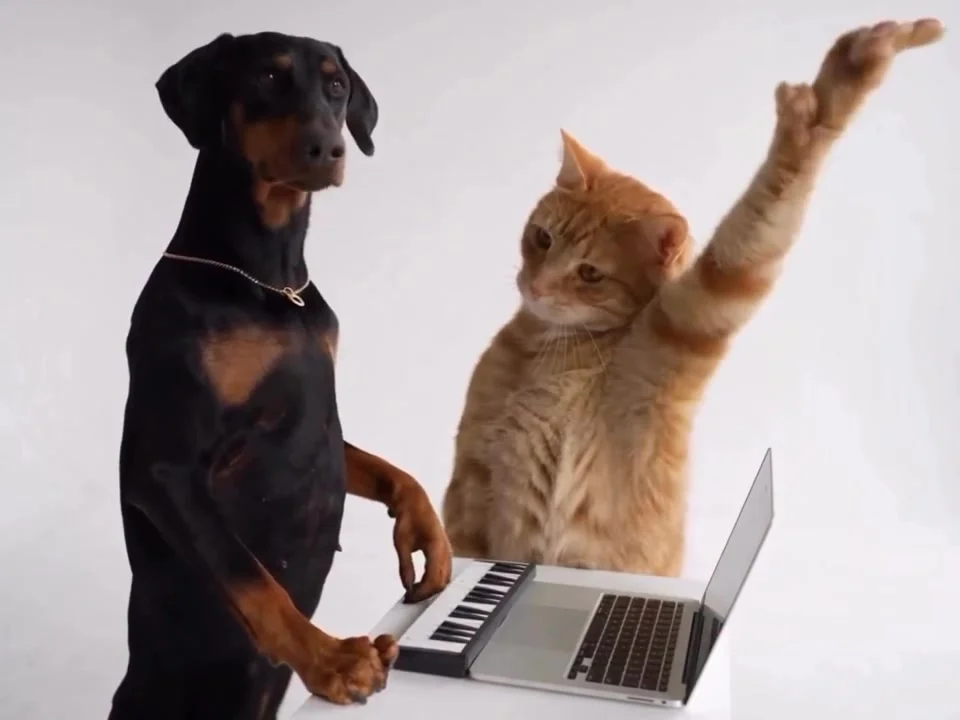
Alorse On Dance is the keyboard-and-laptop duet where a dog takes the left side and a cat takes the right in the source clip. To make the Alorse On Dance AI video with people, upload one clear photo for each side. The two uploads are required; the first person appears on the left, and the second appears on the right.
The casting decision happens before the upload
The source preview gives you a useful map: a dog stands beside the small keyboard on the left, while a cat sits near the laptop on the right. The white wall and table keep the scene almost blank, so the faces are the whole joke. No new dance. You’re casting the original one.
On the Alorse On Dance template, Image 1 is the left performer and Image 2 is the right performer. Both are required. That means a photo of your friend in slot one won’t magically move to the laptop side because your caption calls them the DJ. Want the other side? Reverse the upload order.
Pick a pair with a reason to share the frame. Roommates who always argue over the playlist make sense here. So do a bandmate and the friend who insists they’re a producer after touching one key. That’s the bit. A random two-person pairing gives the viewer less to latch onto, even if the faces look great.
Get permission first. Ask before using somebody else’s photo, especially if you’re posting from a public account. The original preview is a staged dog-and-cat clip; your generated version isn’t footage of either person actually performing that dance. Keep that distinction clear in the caption rather than pretending it happened.
Photos that survive the keyboard scene
The form asks for a clear photo of each person. Use two separate images, each showing a single person with an unobstructed face. Include enough of the upper body to establish the outfit. The template says it carries the face and clothing into the result. A tight face-only selfie leaves the clothing to guesswork.
Try to keep the apparent camera angle reasonably close across the two uploads. If one person is photographed straight on in daylight and the other is barely visible in a dark mirror shot, the pair can feel pasted together before they even start moving. Matching outfits? No. Readable faces? Yes.
Don’t crop the hands into the source photo just to imitate the keyboard. The template follows the source choreography; it isn’t using your photo to learn a new keyboard performance. Focus on clear eyes and hair edges. Make the recognizable part of the outfit visible. If the only photo has sunglasses over half the face, choose a different one.
The source cover shows animals, not a sample of how your two people will render. It’s a map. Treat it as a diagram of the left and right parts, not as a promise that the generated faces will look identical to your uploads.
Generate once, then watch the awkward bits
- Open the two-photo Alorse On Dance generator and put the keyboard-side person in Image 1. Put the laptop-side person in Image 2. Check the order before generating.
- Choose 15 or 30 seconds and 480p or 720p. The live template form offers both lengths and resolutions; the source framing is 4:3, with its original audio. Start with the shorter cut if your main goal is to check casting and motion.
- Watch both people, not just your own face. Pause around the hand-and-keyboard movement, look at the outline of each head against the white wall, and confirm neither person’s appearance drifts during the quick moves.
The generator is asked to preserve the source timing and scene, but fast gestures can still produce odd fingers or shifting faces. Spot a weird hand? Try a cleaner photo before posting. Paying for more resolution cannot rescue a photo where a face was hidden in the first place.
Listen, too. The source audio comes with the template, so an extra music track may clash with the existing beat. Don’t guess. If you add music inside a social app, preview the whole edit with sound on before you hit publish. Check the platform’s music-use rules for your account and region rather than assuming every audio choice is cleared.
Keep the 4:3 frame legible in a vertical feed
The source clip is framed at 4:3, not 9:16. Forcing it to fill a tall screen can cut the left performer’s body or the right performer’s laptop out of the joke. Keep both. The two-shot matters more than making every pixel of the phone screen busy.
One practical edit is to place the complete 4:3 video inside a vertical canvas with space above and below. Put a short setup line in the top space, such as “me and the friend who owns one MIDI keyboard,” and let the action play untouched below it. Use the bottom space for a caption or leave it plain. Check that neither platform controls nor your text cover the right-side face.
Keep the first second understandable without reading a paragraph. One line works. If the two people are recognizable to your audience, a name or relationship cue is enough. You could also let the original dog-and-cat setup inspire the caption, but don’t label the result as real concert footage. AI labels should follow the rules of the platform you’re posting on.
If you want a different two-person format for the next post, the Hotel Lobby duet guide works with a different staged scene. For this one, the laugh lives at the table: preserve both performers, the little keyboard and the laptop in the final crop.