How to Make a Wan 3.0 AI Video on Trendai
How to make a Wan 3.0 AI video on Trendai using text, a photo, or first and last frames, with smart length, audio, cost and export checks.
To make a Wan 3.0 video on Trendai, open the Wan 3.0 generator and choose a starting mode: text, one photo or paired first/last frames. Set the length and resolution, then pick a frame shape. Check the Generate button’s price before rendering. Watch the whole export before posting, especially the final seconds.
Build one shot before you touch the settings
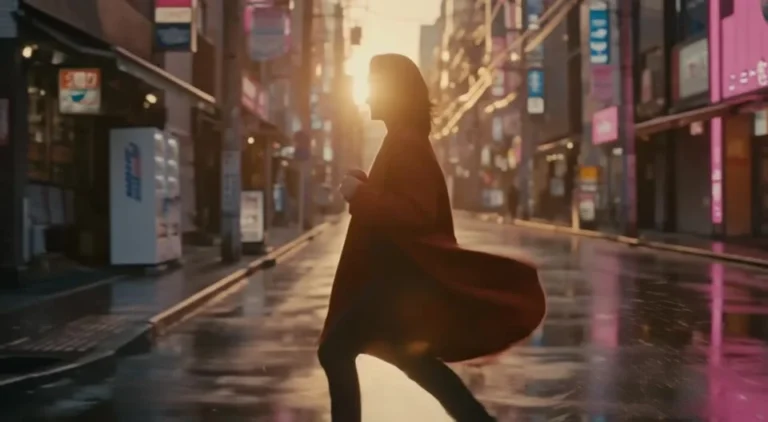
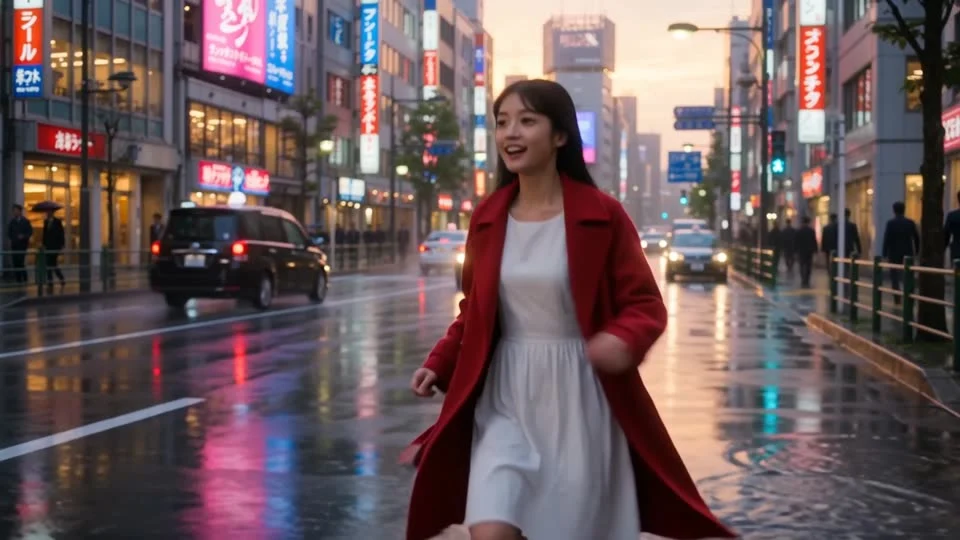
The Wan 3.0 model page offers three ways to start: Text to Video, Image to Video, and First & Last Frame. You don’t need a shot list for a ten-second walking clip. Pick one visible action, one camera move and a place where the action can finish. A useful first try: “A woman in a red coat walks down a wet city street at night; the camera tracks beside her as neon reflects in the pavement; she pauses under an awning.” That’s a scene you can inspect, not a demand for five impossible cuts.
For text alone, describe where the camera sits and what changes on screen. “Cinematic” doesn’t tell the model much. Be concrete. “Low camera tracking beside the coat hem, steady pace, reflections staying below the shoes” gives you something to judge. Cramming three locations into one take makes continuity harder to assess.
Image to Video starts from your photo. Give the subject space to move. A person jammed against the right edge has nowhere to walk right without leaving the frame. Crop for the intended motion. The site’s sample poster isn’t your output.
Choose the right starting mode
- Text to Video: Enter the shot description without uploading an image. For a street walk, call out the subject’s direction, camera position and the moment the motion stops. Generate a short test before asking for a longer take.
- Image to Video: Upload a photo you own or have permission to use as the first frame. Keep the prompt focused on motion that fits the photo: “Camera follows this person forward for a few steps” is easier to check than a sudden aerial reveal from a tight portrait.
- First & Last Frame: Provide a starting image and an ending image. Keep the same person, outfit, viewpoint and setting recognizable across both if you want a smooth transition. Ask for one bridge action, such as walking from a doorway to the curb. Don’t expect two unrelated images to turn into a believable single take just because you’ve labeled them start and finish.
This is a flexible model workflow, not a prebuilt recasting template. Trendai’s earlier Street Style Walk guide covers a fixed fashion clip that takes an identity photo but supplies the outfit and street scene itself. With Wan 3.0, your prompt or chosen frames establish those details; don’t assume that template’s clothes or camera path carry over.
Set length, quality and framing for the post
On its live model page, Trendai lists whole-second clip lengths from 2 to 30 seconds, plus 480p / 720p / 1080p resolution choices. The listed shapes are 16:9, 9:16, 1:1, 4:3, 3:4 and adaptive. The generator is client-rendered, so its server-delivered page doesn’t expose every live control. Check the options in your session before paying.
For a Reel or Short, start with 9:16 if you want a tall frame. Leave space around a walking subject so the coat and feet survive a phone-sized view. For a wide street establishing shot, 16:9 gives the surroundings more room. Keep square product loops centered. A platform crop can cut off an item at the edge.
Start at 720p for a draft you can inspect, then consider 1080p for a version you mean to keep. More pixels won’t repair a drifting face. Test the motion at a length that contains the action; use a longer clip only when the story needs the extra seconds. Thirty seconds of walking without a new beat can feel much longer on a feed.
Trendai describes native audio as optional for Wan 3.0. If you need a silent base for licensed platform music, switch audio off if that control is available; if you generate audio, listen to the downloaded file before adding another track. Don’t assume the model will deliver clean dialogue, a specific song or a usable ambient sound just because the sample includes sound.
Check the displayed cost, then check the actual clip
The model page shows a credit schedule, but your exact price appears on the Generate button and changes with your chosen settings. Look there before you start, and check the current pricing page if you need to buy credits. A longer or sharper render may cost more. Avoid publishing a static credit estimate in a caption when the on-screen amount is the one you actually agreed to.
After generation, watch once for the story and once for failures. Same coat at the end? Do hands pass through the awning, or do puddle reflections slide in a different direction than the camera? Pause near the last frame, especially if you supplied an ending image, and compare the destination with what you uploaded. If the result loses the subject, shorten the movement or simplify the prompt before spending on a bigger version.
Check the audio separately, then view the file inside the app where you’ll post it. Feed overlays can hide shoes or a product label even when the exported frame looks fine on your computer. If the result implies a real event, make the caption clear that it’s AI-made rather than presenting a synthetic street moment as documentary footage.
Use images and sound you have the right to post
Only upload your own images or ones you have permission to use. Get a real person’s consent before using their likeness; don’t impersonate a stranger or celebrity, copy someone’s voice, or rely on an unlicensed soundtrack. Trendai’s Wan 3.0 page says the service bars nonconsensual real-person content and unsafe material. Platform music libraries have their own account and region rules, so check the track’s permitted use before pairing it with an ad.
Ready to try your shot? Open the Wan 3.0 generator, start with a short take, and keep the final frame in view while you review the result. If it’s supposed to land on a specific image, compare that frame before you spend credits on a longer edit.