How to Make a FLUX 3 Max Video on Trendai
How to make a FLUX 3 Max video on Trendai: plan one shot, choose text or image inputs, set sound and framing, then check credits and the export.
To make a FLUX 3 Max video on Trendai, start with a single shot you can describe clearly, then choose text, image, or first-and-last-frame input. Set a 5–20 second length, choose 720p or 1080p, and check the credit price shown before you generate. A good clip needs one readable action, not a whole screenplay.
Build a shot before you write a prompt
The FLUX 3 Max model page says the model reasons through a prompt into a shot plan before rendering. Give that planning step a job it can actually finish. Put the subject in a place, specify the action, then tell the camera where to start and how to move. Keep lighting and sound descriptions tied to that same moment.
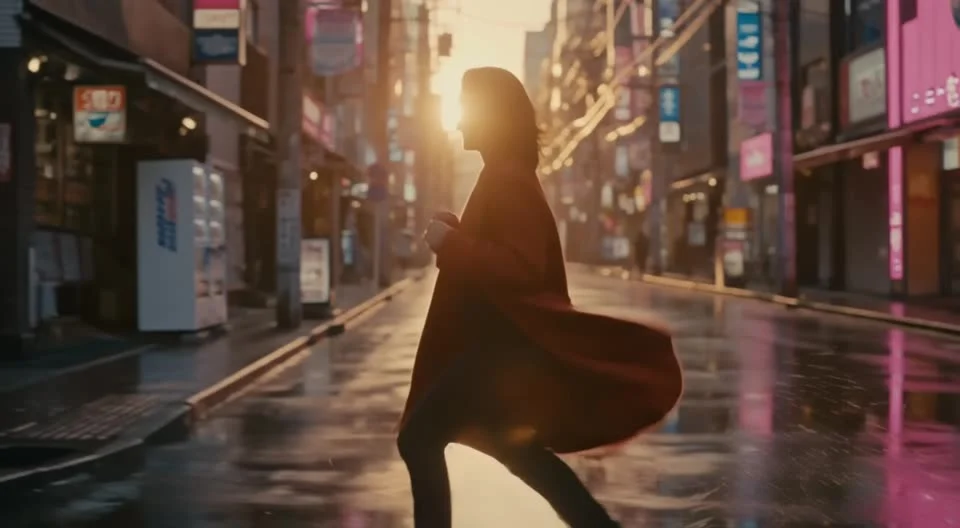
The page’s poster shows a silhouette in a dark coat crossing a reflective street against a bright backlight. That’s a reference for framing, not evidence of how your own clip will turn out. Plan a crossing with a visible start and finish. A still figure is a different prompt.
Try this: “A person in a dark raincoat crosses an empty wet street at night. Start at curb height behind them; track slowly sideways as their shoes pass through reflected light. A single warm light glows across the road. Hold the crossing in one continuous shot. Quiet traffic in the distance.” That gives the model an action and a camera path. It also gives you a simple way to judge the result: does the person actually cross?
Resist adding a chase or costume change to the same short clip. One move is plenty. Need a second beat? Make another clip and cut them together.
Pick the input that anchors the scene
- Text to Video: Use a written shot when you don’t need to match a particular face or starting composition. Describe the opening frame first, then the motion. For a product shot, specify where the item sits and how the camera approaches it instead of asking vaguely for “cinematic product footage.”
- Image to Video: Start with a photo when the opening look matters. Trendai says the image becomes the first frame, so use a sharp image with enough space around the subject for the intended move. Don’t ask for a sweeping camera move if your subject is already cropped at the edge. Permission matters if the photo shows someone else.
- First & Last Frame: Supply both endpoints when the change itself is the point: a closed door in frame one and the same door open in frame two, for example. Match the camera angle and objects between images, because if the first frame shows the door from the sidewalk while the last shows it from inside the room, the model must invent a camera move as well as the opening action. Mismatched endpoints can spoil the middle.
This is a free-form model workflow, not a fixed one-photo trend template. The earlier street-style walk video guide focuses on preserving an outfit through a specific walk edit. Here, you decide what moves and what stays fixed.
Set runtime, frame, and sound with intent
Trendai’s model specifications list clips from 5 to 20 seconds in whole seconds at 720p or 1080p. Start short. Give a longer crossing room to begin at one curb, reach the reflection, and clear the road; don’t stretch an action merely because the upper limit exists. The page lists 24 frames per second. Judge visible motion, not a spec sheet.
There are eight aspect-ratio options listed: auto, 21:9, 2:1, 16:9, 4:3, 1:1, 3:4, and 9:16. Choose 9:16 for a full-height short-form post if the action fits. A wide street with its bright light off to one side might work better at 16:9 or 21:9; cropping afterward can erase the light that explains the silhouette. Leave room for captions.
Native audio is optional, according to the model page. If you want the street to feel quiet, ask for faint traffic or switch sound off and add licensed audio later. Don’t assume a sample clip’s sound will appear in your export. Listen to the downloaded result from start to finish, especially if you’re posting with headphones-off captions or adding music in the platform editor.
Check credits before the final render
Open the FLUX 3 Max generator, confirm the selected model, then choose your input mode and enter the shot. Check the live editor for its current controls rather than assuming every option is visible before it loads. The model page says the Generate button shows the price for your exact selections.
Credits change with length and resolution. The published grid starts at 867 credits for 5 seconds at 720p and lists 5,177 credits for 20 seconds at 1080p; these are page examples, not a promise about your render, especially if you change the runtime while trying to give your subject enough space to enter the frame and complete the crossing. Trendai says its quoted price includes an extra second because the provider may render past the requested length, and failed generations are automatically refunded. Check again after changing a setting. Prices move.
For a first pass, try a short 720p version and inspect the movement. If framing works and you need cleaner detail, consider 1080p. Save the prompt so you can change one variable, such as the camera path, rather than replacing the entire shot when a reflection looks wrong.
Review the export before you post
Watch the MP4 at normal speed and pause at the beginning, midpoint, and final frame. Does the coat stay consistent? Does the backlight remain behind the person instead of jumping across the road? Check hands and feet. Watch for signs that grow into nonsense text. Rework the prompt or source frames if a detail breaks the scene. The poster isn’t a QA test for your result.
Use photos you own or have permission to animate. Trendai’s model page prohibits real people without consent and disallows unsafe or illegal content; don’t use the tool to impersonate someone or copy a voice. If you publish a realistic scene that could be mistaken for footage of a real event, label it as AI-made where the platform requires disclosure. Check music rights separately. A clean export doesn’t give you rights to a stranger’s face, a brand’s footage, or a song.
Before uploading, preview the video inside the posting app with its caption and interface overlays visible. Keep the crossing clear of buttons and text stickers. If the light falls outside the safe area, adjust the crop or regenerate in a frame that holds both the person and the backlight.