How to Make an Electric Shock Pet Filter Video
How to make an Electric Shock Pet Filter video with your photo and a pet photo, then check the soot reveal and post the fictional gag honestly.
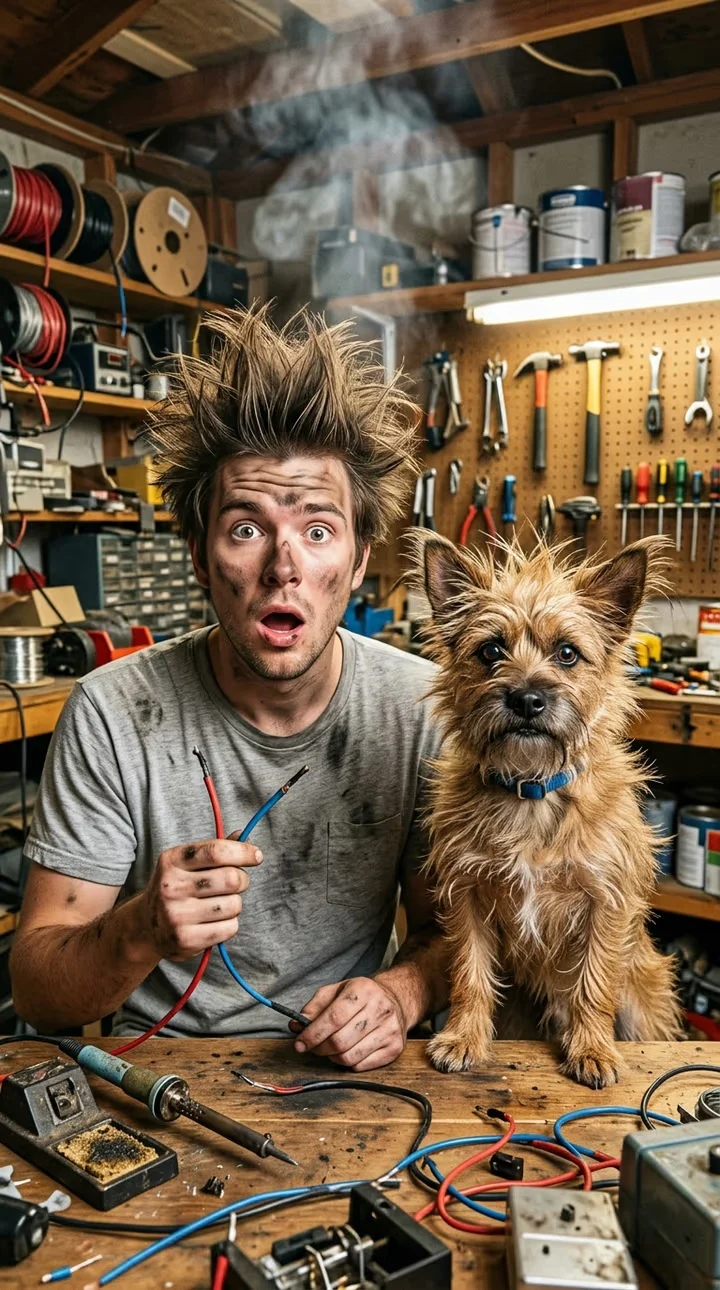
To make an Electric Shock Pet Filter video, upload one clear photo of yourself and a separate photo of your dog or cat. Trendai places you both in a fictional workbench mishap: a wire close-up, a puff of smoke, then a soot-covered reveal. It’s a two-subject joke, so check both faces before you post.
The workbench gag needs both reactions
The Electric Shock Pet Filter template follows a source clip where a person and a pet sit at a workbench. Two prop wires meet in a close-up. Smoke interrupts the shot, and the pair return with dark smudges and hair or fur sticking up. That’s the punchline. Crop out the pet after the puff and you’ve cut the joke in half.
The form calls for about 12 seconds in a portrait 480×836 frame, close to 9:16. It offers a resolution choice, with 480p visible as the default and 720p listed alongside it. The source preview is reference footage, not a result made with your photos. The cover is illustrative too: it shows a man holding red and blue wires next to a shaggy dog, while the live form describes replacing a woman in the clip. Don’t use that still to assign upload roles or promise the same person will appear in your export.
This is a cartoon accident, not footage of a real electrical injury. Treat the smoke and soot as slapstick. No real wires needed. Never stage contact between a pet and a wire for a before-shot; a caption suggesting the animal was hurt would make the gag worse, not funnier.
Cast the two required photo slots
The live upload form labels Your photo first and Your pet second; both have an asterisk. The first slot is for one person’s face and upper body; the second is for one dog or cat with a visible face and clear coat markings, so you need two different files rather than a group shot uploaded twice. No cast selector replaces the pet slot.
For your photo, start with a sharp frame taken at face height. Keep your cheeks and hairline in view, especially if the post relies on friends recognizing you through the soot. Keep the forehead. A cropped selfie with half of it missing leaves little to carry into the frizzy reveal. Skip sunglasses and the heavy beauty filter. The goal is a face that can survive a fast cut, not a polished profile picture.
For the pet, choose a photo where the ears and muzzle, plus a recognizable coat pattern are easy to read. A dog curled into a blanket may look adorable in your camera roll but gives the edit almost no body shape to work with beside the bench. Got a cat? Pick an image that clearly shows it’s your cat. Don’t try to make a black cat identifiable with a dark silhouette against a black couch.
The form says JPG, PNG or WEBP and shows a 50 MB maximum beside each slot. Some lower-page how-to text still says 10 MB, so follow the current form when uploading. Use images you own or have permission to use. Get the human participant’s OK before making an AI portrayal, particularly if the final edit could look like a real mishap out of context.
Keep the setup and reveal legible
Upload your person photo to the first field, then your pet photo to the second. Choose the resolution displayed in your session and look at the credit amount before generating; don’t assume a quoted price elsewhere fits your choice. There is no extra photo input for a workshop backdrop or for the frizzy hair. The workshop is already there. So are the prop action and the cuts; timing follows the reference.
Watch your result all the way through. In the setup shot, can you tell which animal is at the workbench? Freeze the smoke cut. Do paws, hands or wires bend into odd shapes? Pause on the reveal and check that both faces still read. If the pet’s markings disappear or your face becomes someone else’s, a clearer input is a better fix than squeezing a caption over the mistake. Increasing resolution can sharpen an image, but it cannot restore missing features in a blurry source photo.
The template lists source audio, but that tells you what the reference uses rather than what we’ve personally verified in your export; the safe move is to play the downloaded file with sound on and listen through the ending before you share it. Add only audio you have the right to use in the posting editor. The portrait frame is already close to a typical short-form vertical layout. Keep the pet visible when adding text overlays, especially at the instant the smoke clears.
Post it as a fictional pet bit
This isn’t the same setup as the Hit the Road Dude pet video, where a single pet photo drives a road-trip scene. Here your own reaction matters equally: the viewer has to see two recognizable faces before the smoke, then find them again after it. That makes it a good shared post with someone who already knows the pet, provided the person in your photo agrees to it.
Try a caption that sets up the pair rather than pretending there was an actual accident: “We were not allowed back in the workshop.” Let the reveal work. It supplies the joke. If you want a tighter cover frame for the post, choose a moment with both subjects instead of zooming in on the wild hair alone. Label the scene as an AI-made fictional edit where your platform requires it, and avoid implying a pet was shocked. For more formats after this one, browse the Trendai trends catalog rather than forcing a different pet clip into the same two-photo premise.
Before hitting share, watch once with your thumb over the caption area. If that hides the dog’s face on the soot reveal, move the text upward or pick another frame. The animal gets the last laugh.